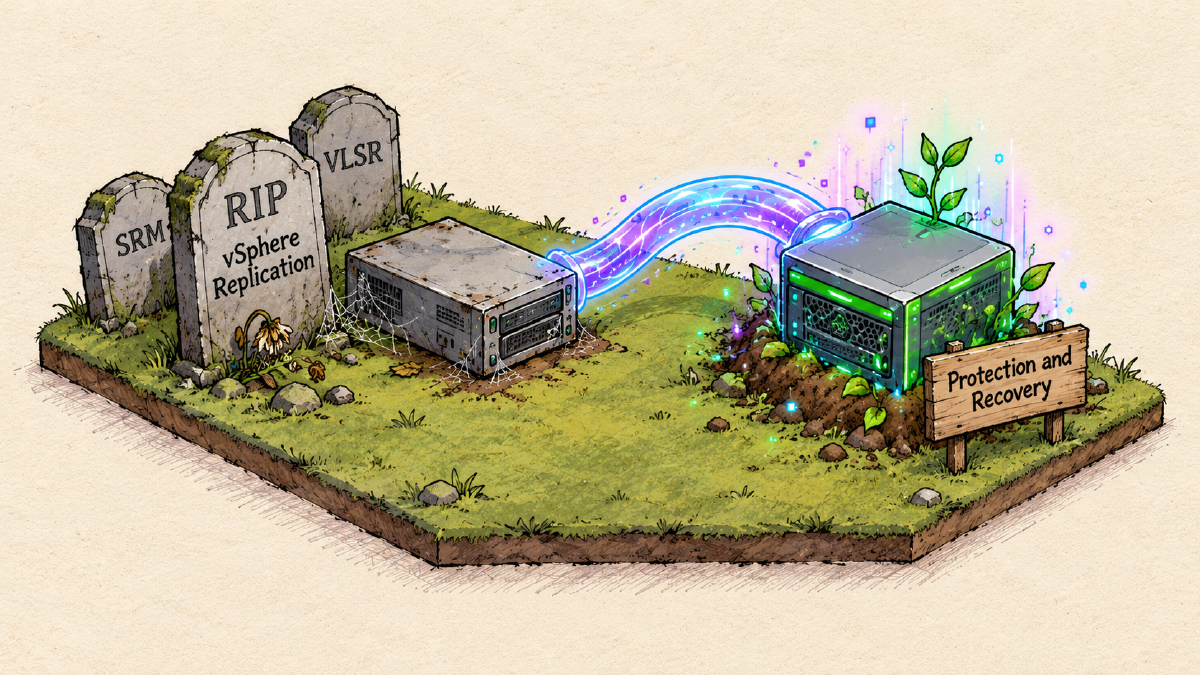
Do you run vSphere Replication in your environment, standalone, without SRM, still on VCF 5.x or VVF 8.0 U3, and need to get to VCF 9? Then the first step isn’t vCenter or ESXi: it’s moving vSphere Replication to the product that replaced it, now called VCF Protection and Recovery.
The good news is that Protection and Recovery 9.1 already runs on vSphere 8.0 U3. You can migrate replication while the environment is still on 8.x and leave the vSphere upgrade for later. The bad news is that there’s no in-place upgrade, and the real work isn’t the upgrade itself but getting the replications ready for it.
This post combines what I found in the Broadcom documentation with a lab I built end to end, starting from two sites with vCenter and ESXi 8.0 U3 and VR 9.0.2.3, and ending on Protection and Recovery 9.1.1.0100 with replication working.
SRM, VLSR, VLR, Protection and Recovery: which product is which#
The first hurdle is the name. The product was renamed three times in three years, and the documentation and the download portal mix all of them:
| Version | Product name |
|---|---|
| 8.0 – 8.8.0.3 | VMware Site Recovery Manager (SRM) + vSphere Replication, separate appliances |
| 9.0 – 9.0.2.x | VMware Live Site Recovery (VLSR) + vSphere Replication 9.0.x, still separate |
| 9.0.3 – 9.0.5.x | VMware Live Recovery (VLR) Appliance: VLSR, vSphere Replication and vSAN Data Protection in a single appliance |
| 9.1+ | VCF Protection and Recovery: VLR renamed and integrated into VCF |
In other words, from 9.0.3 on there is no longer “the vSphere Replication appliance”. There’s a combined appliance, and VR is one of its services.
The versions that matter here:
- vSphere Replication 9.0.2.3 (build 25068554, 11/28/2025): the last one on the legacy line and the supported source for converging to 9.1.
- Protection and Recovery 9.1.0 (build 25367487, 05/12/2026).
- Protection and Recovery 9.1.1.0 (build 25691510, 09/03/2026).
- Protection and Recovery 9.1.1.0100 (build 25753785): the one I used in the lab.
9.0.3 was pulled from the portal because of an upgrade bug and replaced by 9.0.4. If you come across references to it, that’s why it isn’t available for download.
Compatibility: no need to upgrade vSphere#
Protection and Recovery 9.1.x is compatible with vCenter 8.0 U3 and ESXi 8.0 U3 or later. The convergence KB asks for ESXi 8.0 U2d+ or 8.0 U3b+. If your environment is already on an up-to-date 8.0 U3, there’s nothing to do at the vSphere layer.
You end up with one combined appliance per vCenter, with up to nine add-ons.
The upgrade path#
You can’t mount the 9.1 ISO on the 9.0.2.x appliance and click upgrade. If you try with any 9.0.4+ ISO, the VAMI returns:
Failed to install update: Is a directoryThe supported path is this:
VR 8.7.x ──► 8.8.x ──► 9.0.2.3 ──► [deploy a new 9.1.x appliance] ──► Converge Legacy Appliances- Going from 8.7 straight to 9.0.x fails with
vmlinuz-4.19.182-2.ph3 not found. Going through 8.8 is mandatory. - From 9.0.1 or 9.0.2.x to 9.0.2.3 is a regular in-place upgrade, via ISO in the VAMI (port 5480).
- From 9.0.2.3 to 9.1.x you deploy a new appliance, with a new IP and FQDN, and run the Converge Legacy Appliances wizard on it. The wizard imports the configuration and the replications from the old appliance.
Prerequisites#
Every replication on Enhanced Replication#
This is the prerequisite that weighs the most. If any replication is left in legacy mode, in either direction (incoming or outgoing), convergence stops with:
Failed to export service: 'hms'. Reason: 'Legacy replications present.'This isn’t just a line in the documentation: I forced this scenario in the lab, with a test replication in legacy mode, and the wizard blocked it right away.
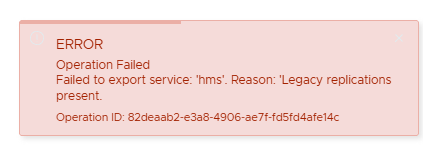
Two consequences of moving to Enhanced Replication worth knowing up front:
- Network encryption is mandatory. The wizard won’t let you proceed without it enabled.
- The data path changes. In enhanced mode the traffic goes from ESXi to ESXi, no longer through the target VR appliance. Routing and firewall between the replication vmkernels of both sites must allow it. The wizard itself has a Replication mapping tests step to validate this.
The other items#
- SSH enabled on the legacy appliances (VRMS and, if present, SRM).
- Forward and reverse DNS resolving the vCenters, the legacy appliances and the new appliances. Name resolution failures are the most common cause of wizard errors.
- A healthy vLCM. The hbr-agent is installed on the hosts through vLCM. Enforced Live Patch in the policies or pending deltas in the cluster image make the installation fail.
- Snapshots of the legacy appliances and of the vCenters on both sites, as KB 408127 asks.
The lab#
| Item | Site A | Site B |
|---|---|---|
| vCenter | vcsa01.9tec.lab (8.0 U3) | vcsa02.9tec.lab (8.0 U3) |
| Cluster | Cluster-A (esxi01.9tec.lab) | Cluster-B (esxi02.9tec.lab) |
| Legacy VR | vrms01.9tec.lab 9.0.2.3 | vrms02.9tec.lab 9.0.2.3 |
| New appliance | par01.9tec.lab 9.1.1.0100 | par02.9tec.lab 9.1.1.0100 |
| Datastores | storage_vmware (NFS), ClusterB-to-ClusterA (NFS, target for B → A replicas) | storage_vmware (NFS), ClusterA-to-ClusterB (NFS, target for A → B replicas) |
| Test VM | ubuntu-DR (A → B) |
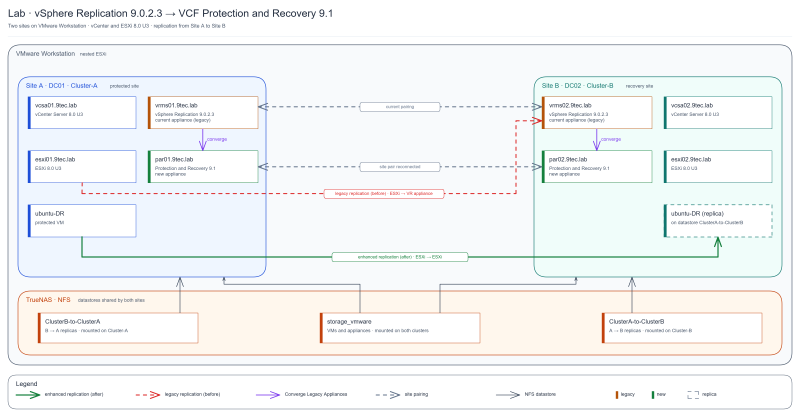
Everything runs on VMware Workstation, with nested ESXi.
Step by step#
1. The starting point#
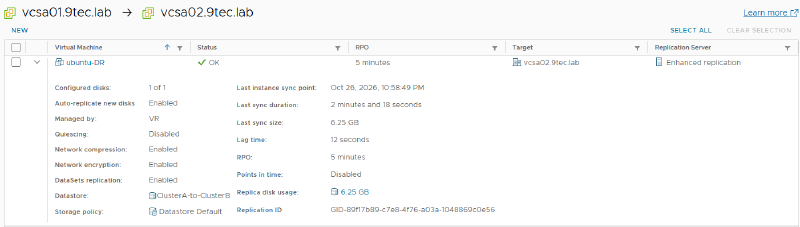
Both sites run VR 9.0.2.3, paired, with ubuntu-DR replicating from Site A to Site B already on Enhanced replication, which is the prerequisite for converging. The replication uses:
- Target datastore:
ClusterA-to-ClusterB - Replication mapping:
Cluster-A ↔ Cluster-B - 5 min RPO, compression and encryption enabled, DataSets replication enabled
Before starting, check on the legacy VRMS that the replication looks the way it should. The Replication Server column should show Enhanced replication, the status should be OK, and Network compression and Network encryption should read Enabled. That’s the state the convergence wizard expects to find.
2. Deploying the Protection and Recovery appliance#
The new appliance runs alongside the legacy VRMS until convergence, so it needs its own IP and FQDN. Register forward and reverse DNS before you start, and deploy it through the vCenter of the site where it will run.
In the inventory, right-click the cluster and choose Deploy OVF Template….
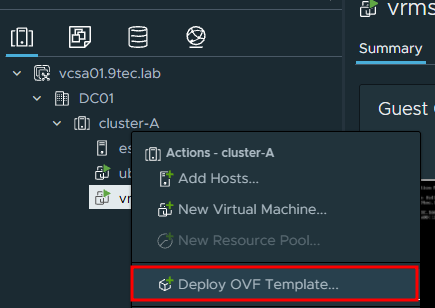
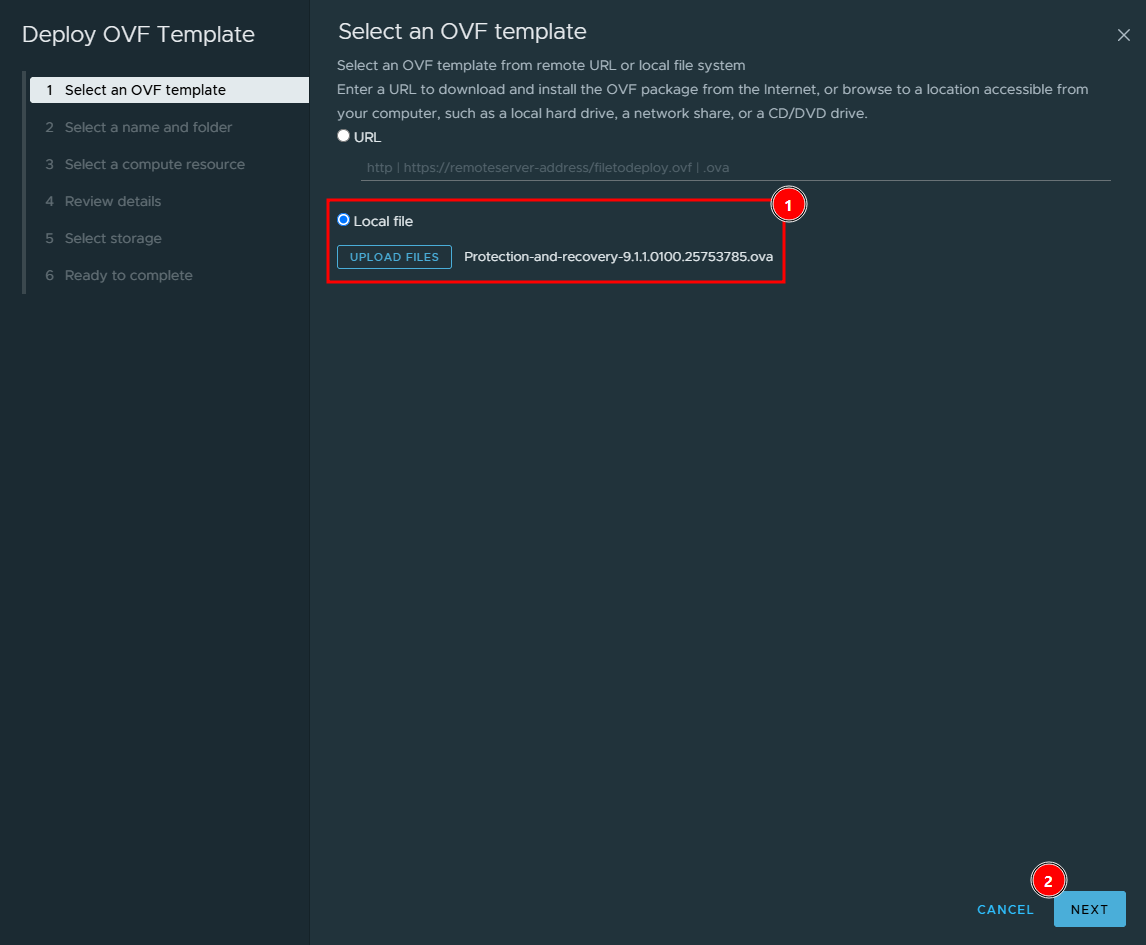
On Select an OVF template, pick Local file, click Upload files and select the OVA downloaded from the Broadcom portal (in the lab, Protection-and-recovery-9.1.1.0100.25753785.ova). Click Next.
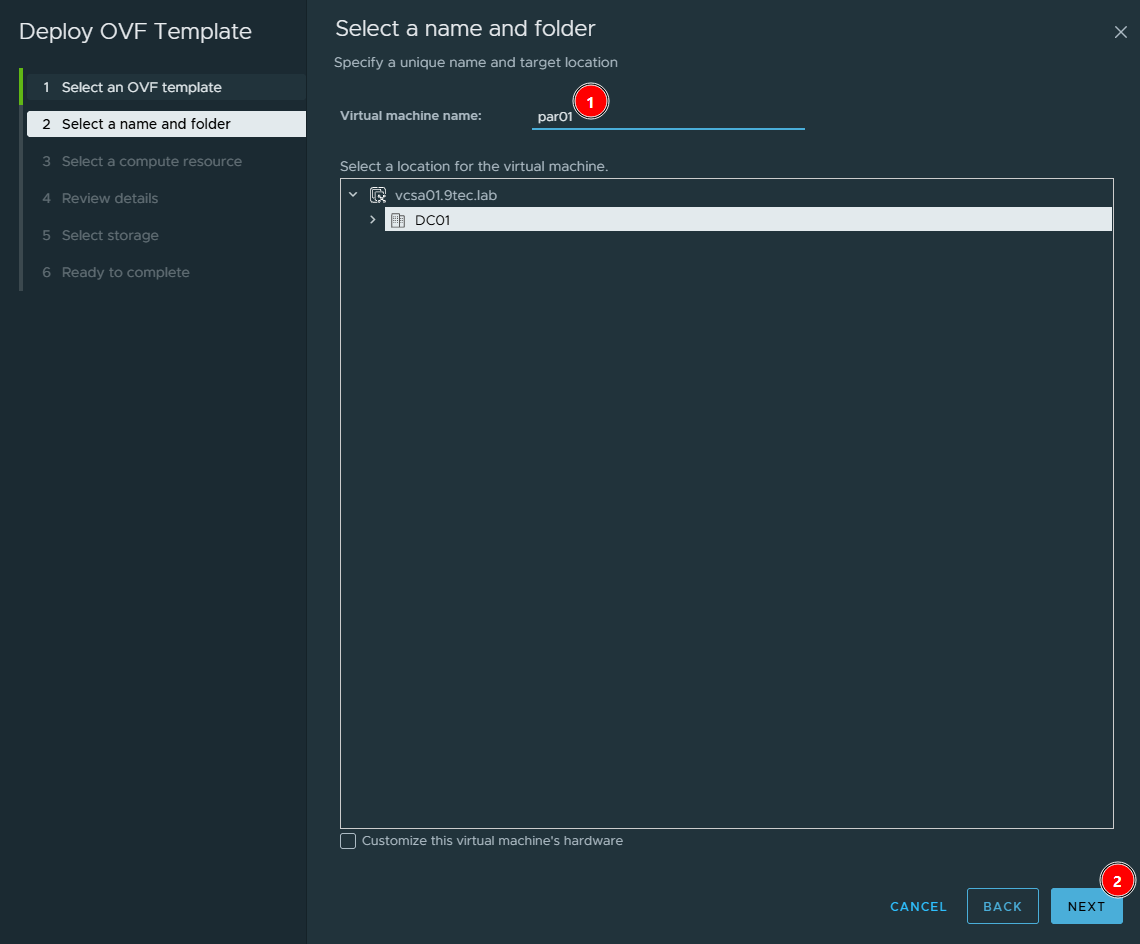
On Select a name and folder, name the VM (in the lab, par01) and pick the target datacenter or folder. Click Next.
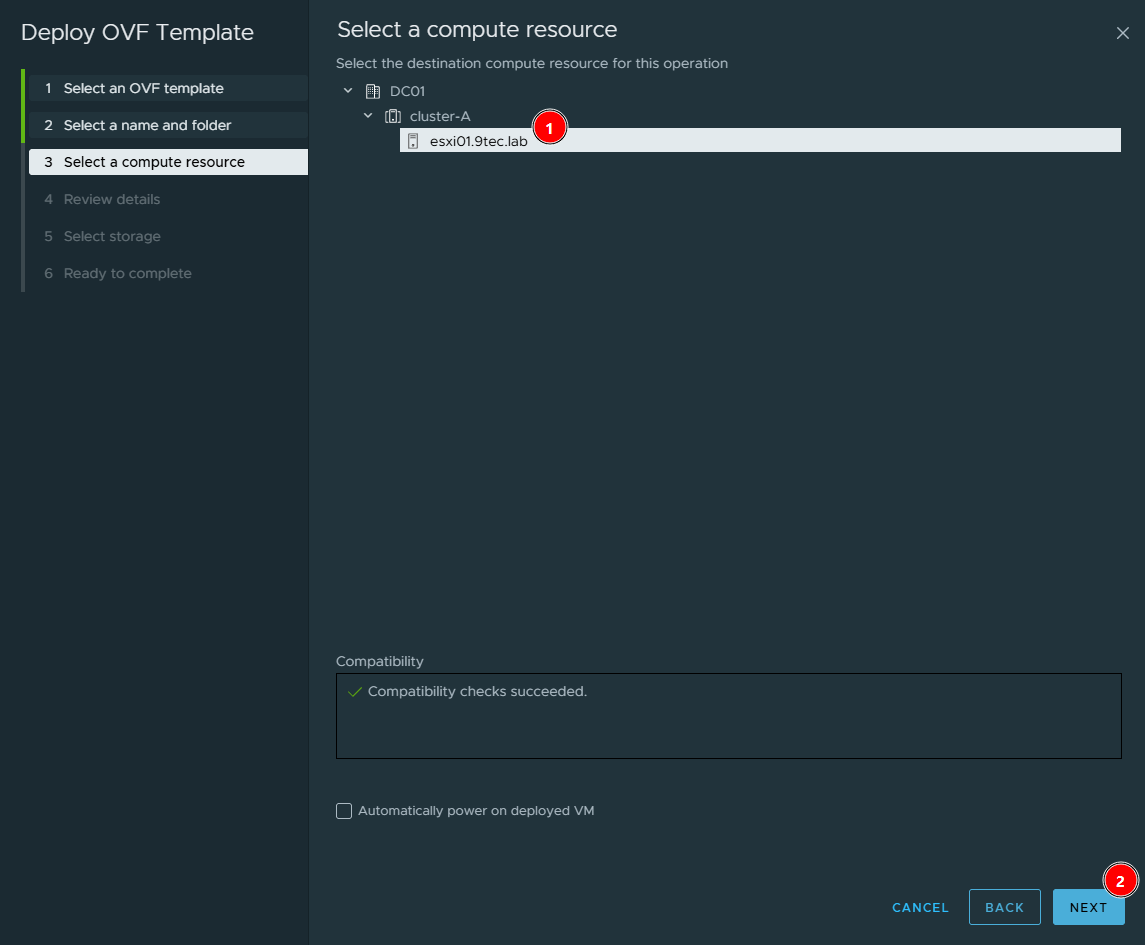
On Select a compute resource, choose the cluster or host where the appliance will run (in the lab, esxi01.9tec.lab) and wait for Compatibility checks succeeded. Click Next.
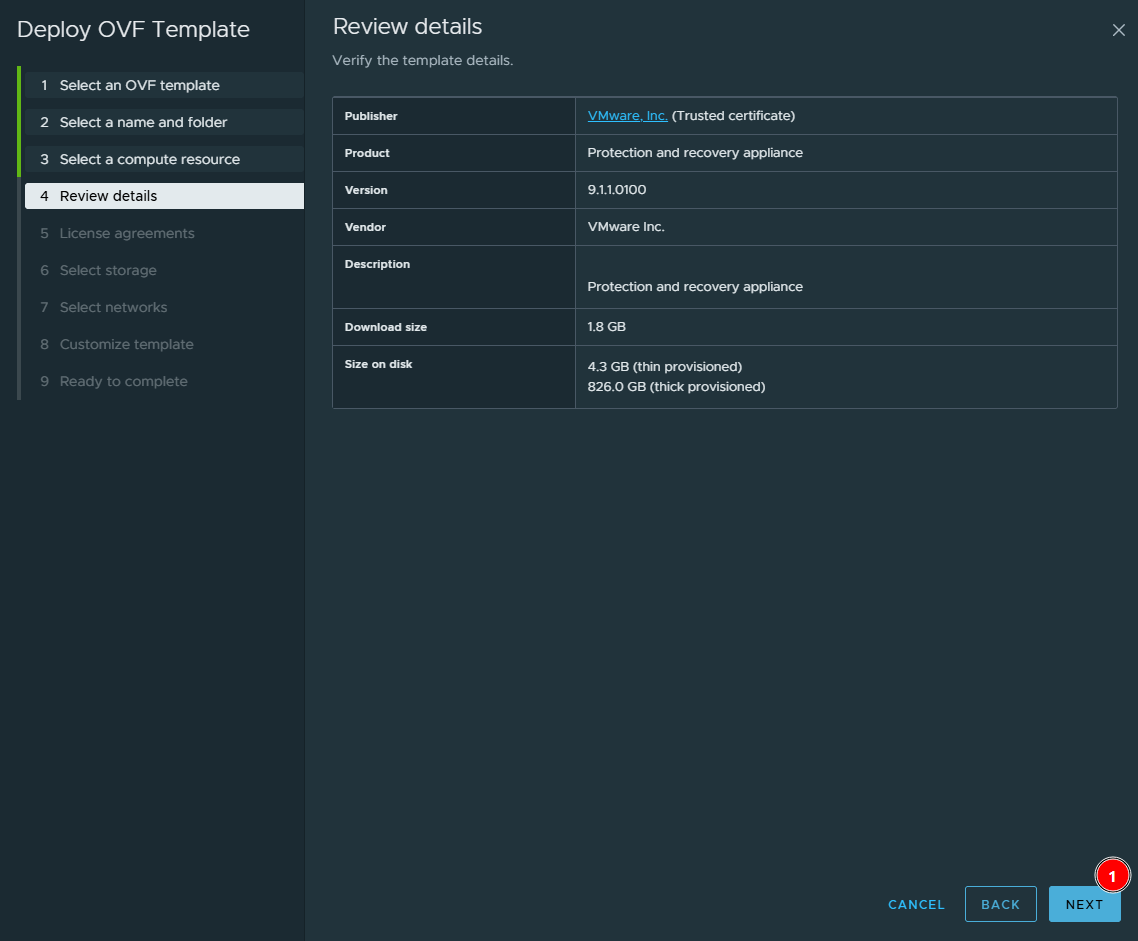
On Review details, check the product and version (Protection and recovery appliance, 9.1.1.0100) and note the size on disk: 4.3 GB thin, but 826 GB thick. Keep that in mind for the storage screen. Click Next.
On License agreements, check I accept all license agreements and click Next.
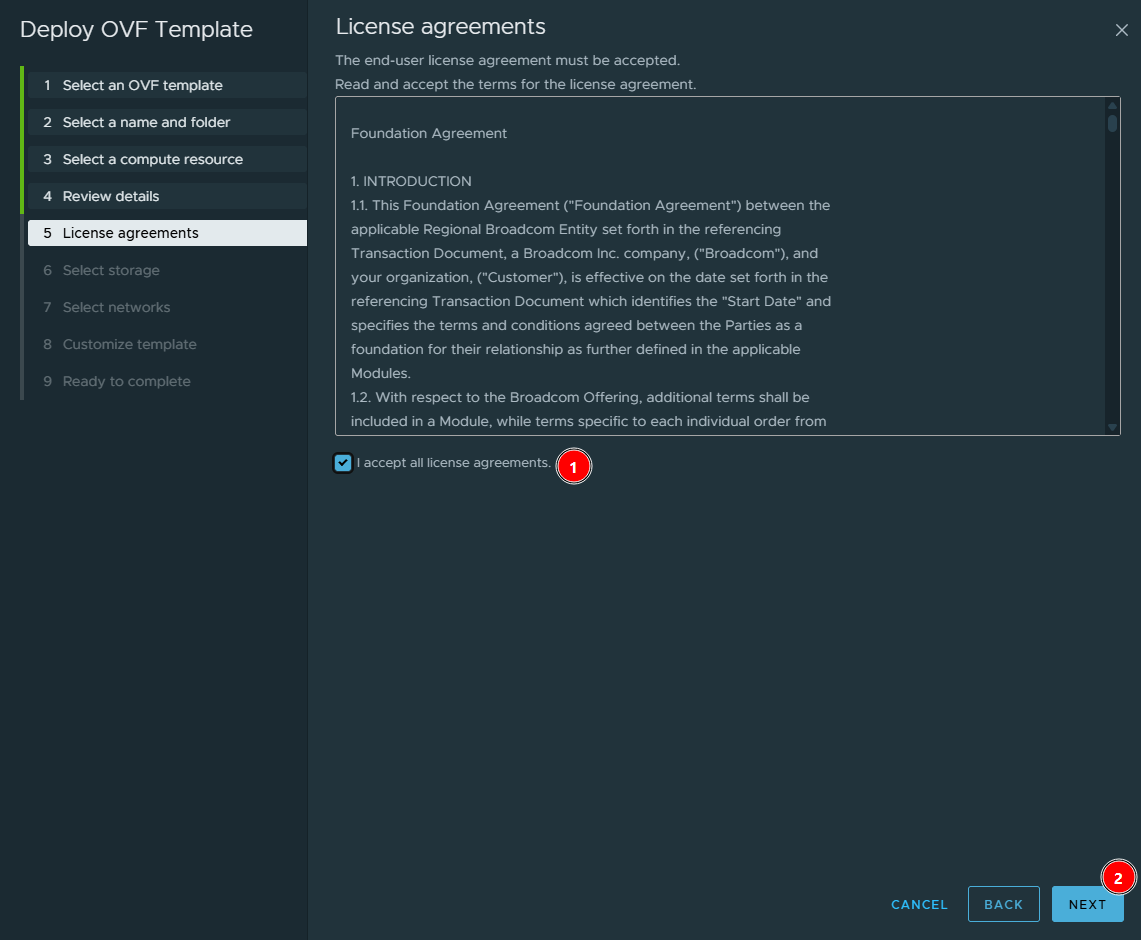
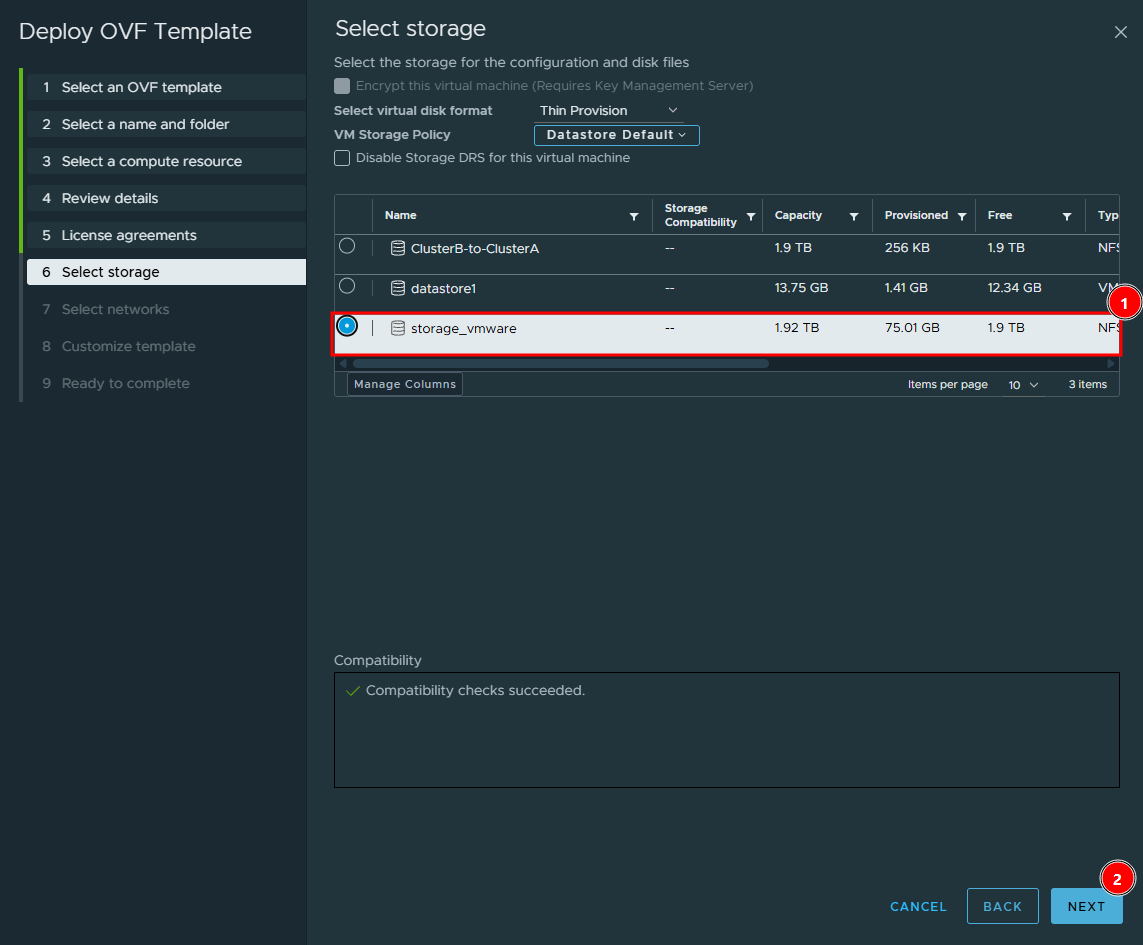
On Select storage, change Select virtual disk format to Thin Provision, so you don’t reserve the 826 GB of the thick format. Pick the datastore that holds your infrastructure VMs (in the lab, storage_vmware), not the datastores that receive replicas. Click Next.
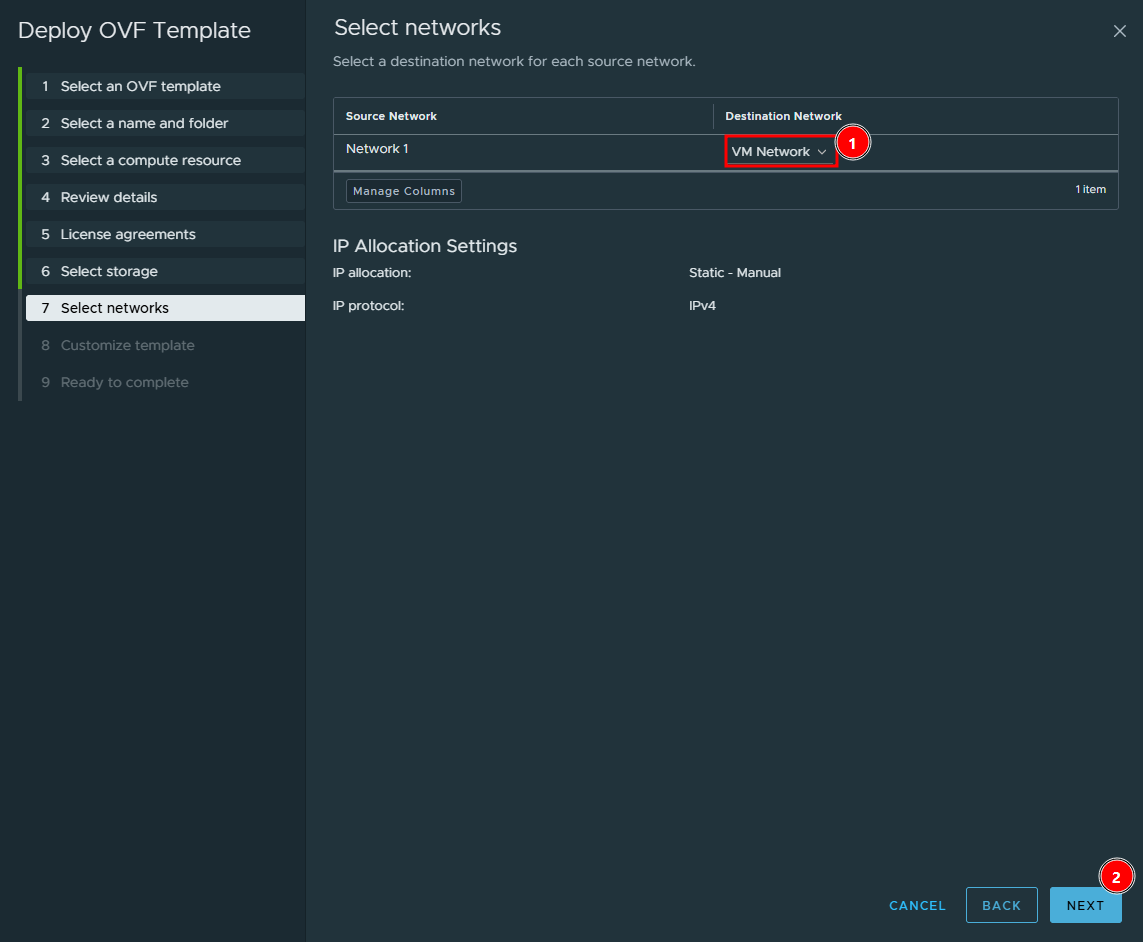
On Select networks, map the appliance’s Network 1 to the management port group, the same network as vCenter and the legacy VRMS (in the lab, VM Network). The IP is static and manual, and you’ll fill it in on the next screen. Click Next.
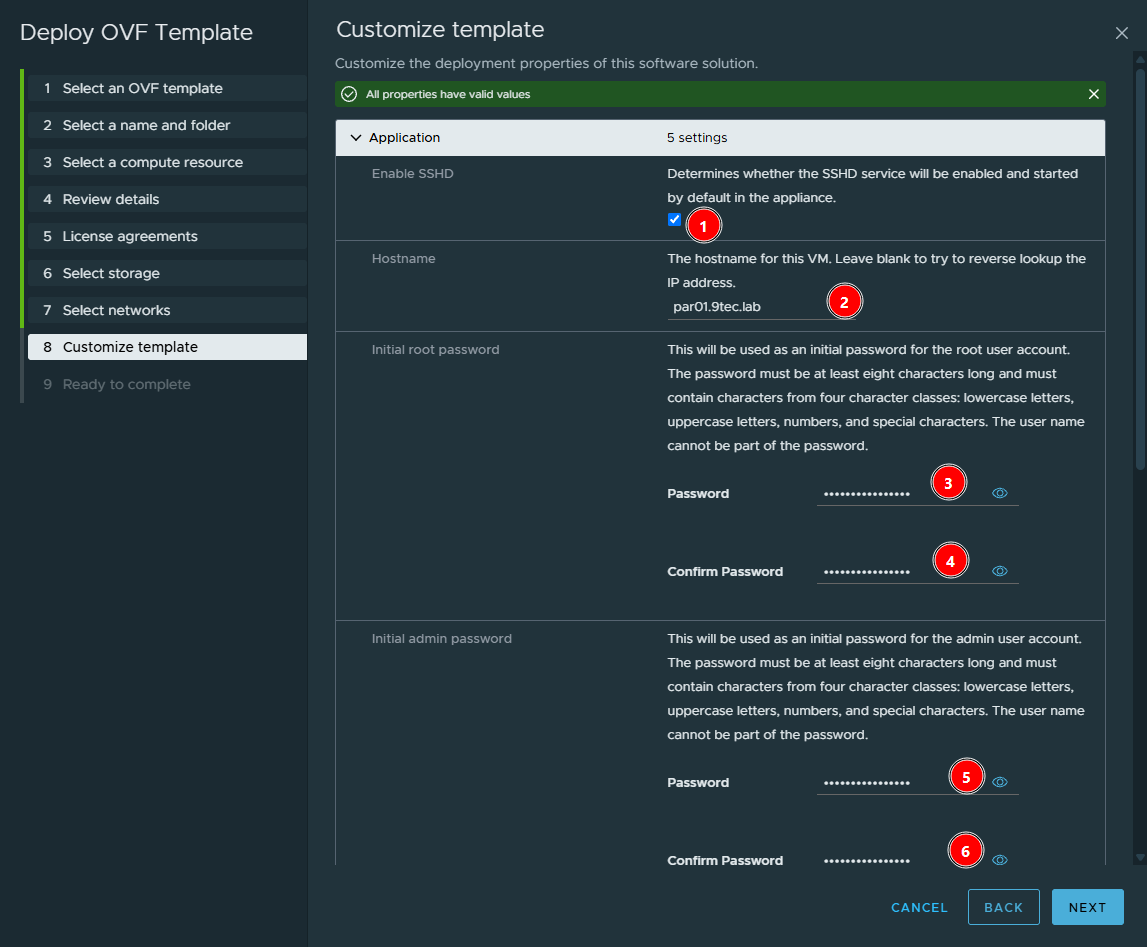
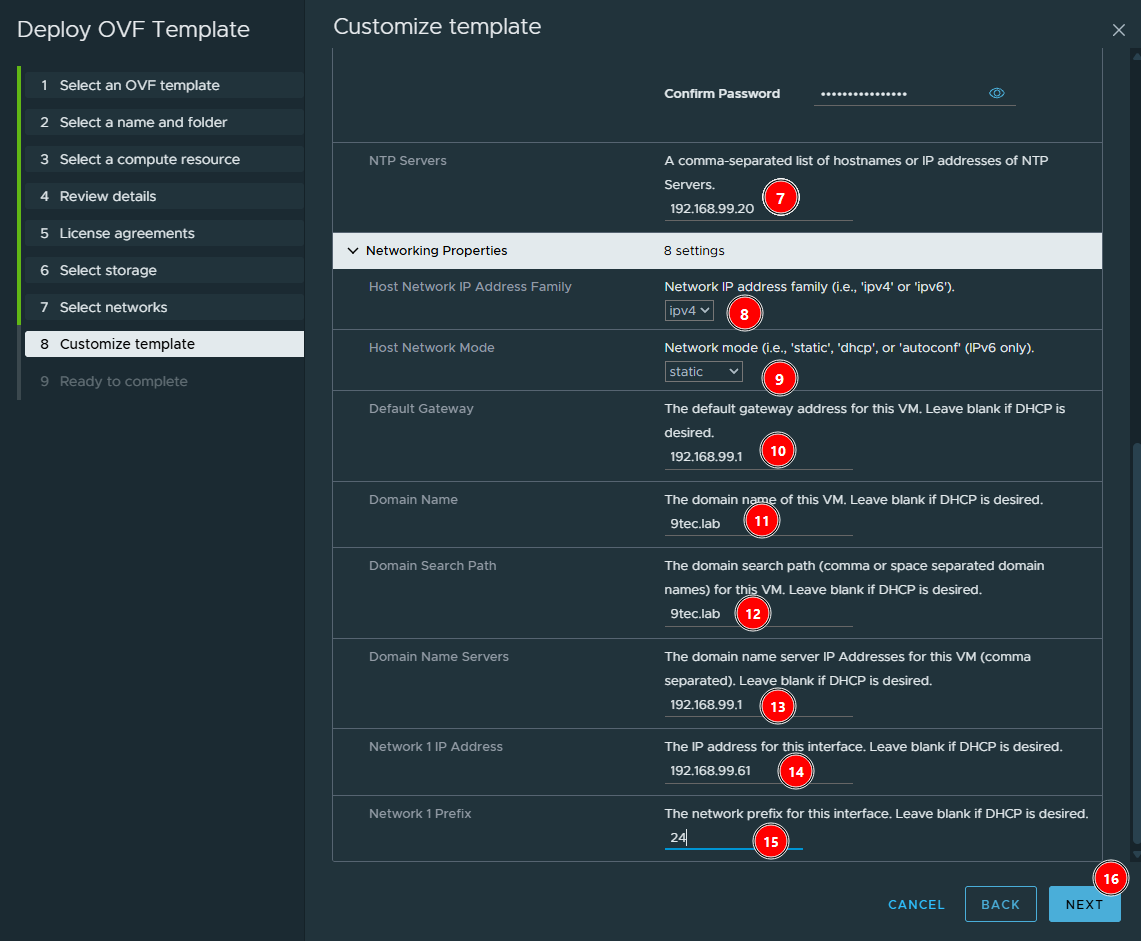
Customize template is the screen that matters. It has two blocks. Under Application:
- Enable SSHD: check it. It helps a lot with troubleshooting if something goes wrong during convergence.
- Hostname: the appliance FQDN (in the lab,
par01.9tec.lab), already registered in forward and reverse DNS. - Initial root password and Initial admin password: at least eight characters, with lowercase, uppercase, numbers and special characters, and not containing the user name.
- NTP Servers: the same NTP as vCenter and the ESXi hosts (in the lab,
192.168.99.20).
Under Networking Properties, set up the network statically: ipv4, static mode, gateway, domain, search path, DNS, the appliance IP and the prefix. In the lab: gateway and DNS 192.168.99.1, domain 9tec.lab, IP 192.168.99.61/24. Once All properties have valid values shows at the top, click Next.
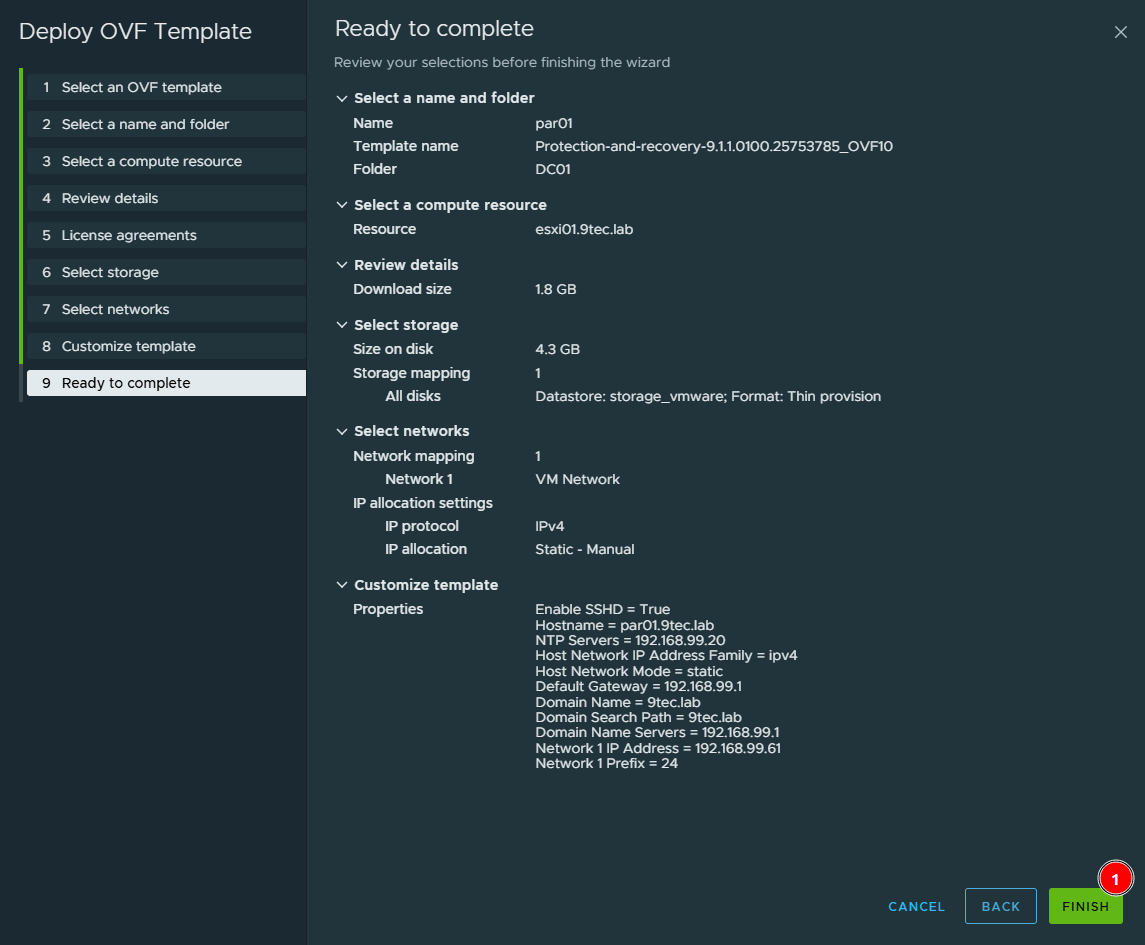
On Ready to complete, review the summary. The items most worth double-checking are the Thin provision format on storage and the network properties. Click Finish and follow the deployment in Recent Tasks.
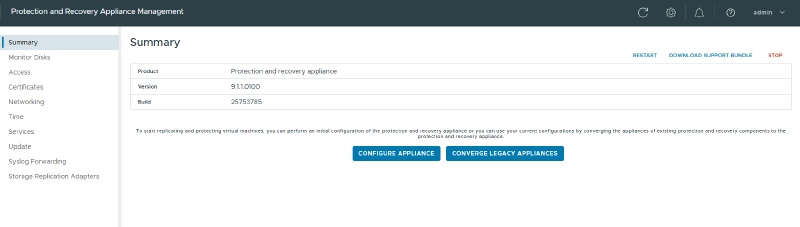
Once the deployment finishes, power on the VM and open the appliance management interface at https://<fqdn>:5480 (in the lab, https://par01.9tec.lab:5480), with the admin user and the password set in Customize template. Summary shows the product, the version and the two possible paths: Configure Appliance, for a fresh install, and Converge Legacy Appliances, which is the one we want here.
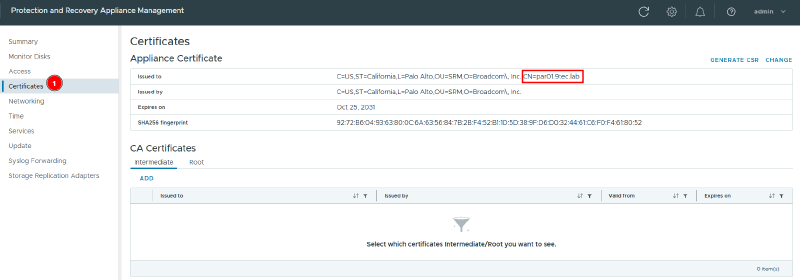
Before clicking either of them, go to Certificates and check that the CN of the Appliance Certificate matches the appliance FQDN (in the lab, CN=par01.9tec.lab). A CN that doesn’t match the FQDN causes errors later, when registering with vCenter and when pairing. It usually happens when the Hostname field in Customize template is left blank and the reverse lookup fails. If it doesn’t match, fix it before moving on.
3. Converge Legacy Appliances#
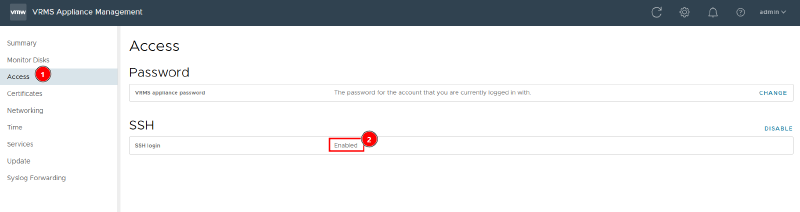
Before opening the wizard, make sure SSH is enabled on the legacy VRMS being converged (in the lab, vrms01.9tec.lab). It’s a prerequisite: the wizard needs to reach the old appliance to export its configuration. In the VRMS management interface (https://vrms01.9tec.lab:5480), go to Access and check that SSH login reads Enabled. If it’s disabled, click Enable.
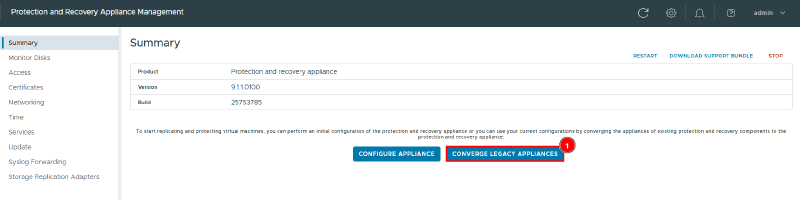
Back on Summary in the new appliance’s management interface (https://par01.9tec.lab:5480), click Converge Legacy Appliances.
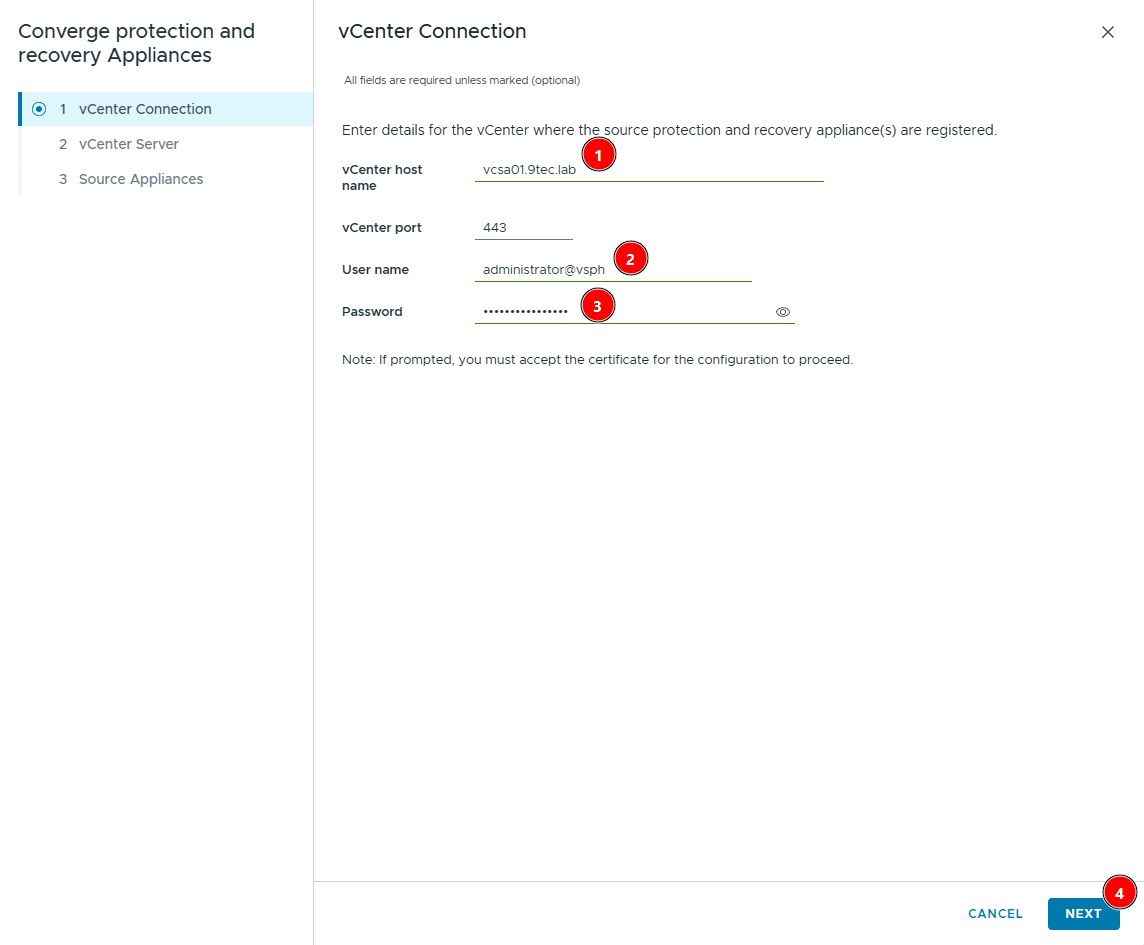
The wizard has three steps: vCenter Connection, vCenter Server and Source Appliances.
On vCenter Connection, enter the vCenter where the legacy VRMS is registered (in the lab, vcsa01.9tec.lab, port 443) and an SSO administrator account ([email protected]). Click Next.
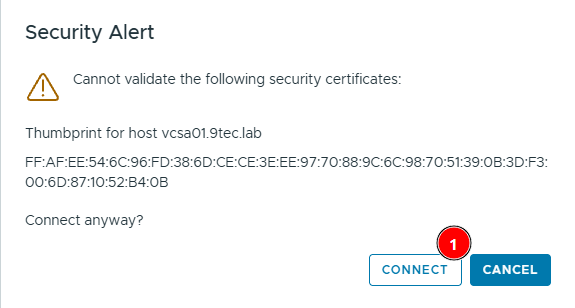
Since the new appliance doesn’t trust the vCenter certificate yet, a Security Alert shows up with the vcsa01.9tec.lab thumbprint. Check that it’s the right host and click Connect.
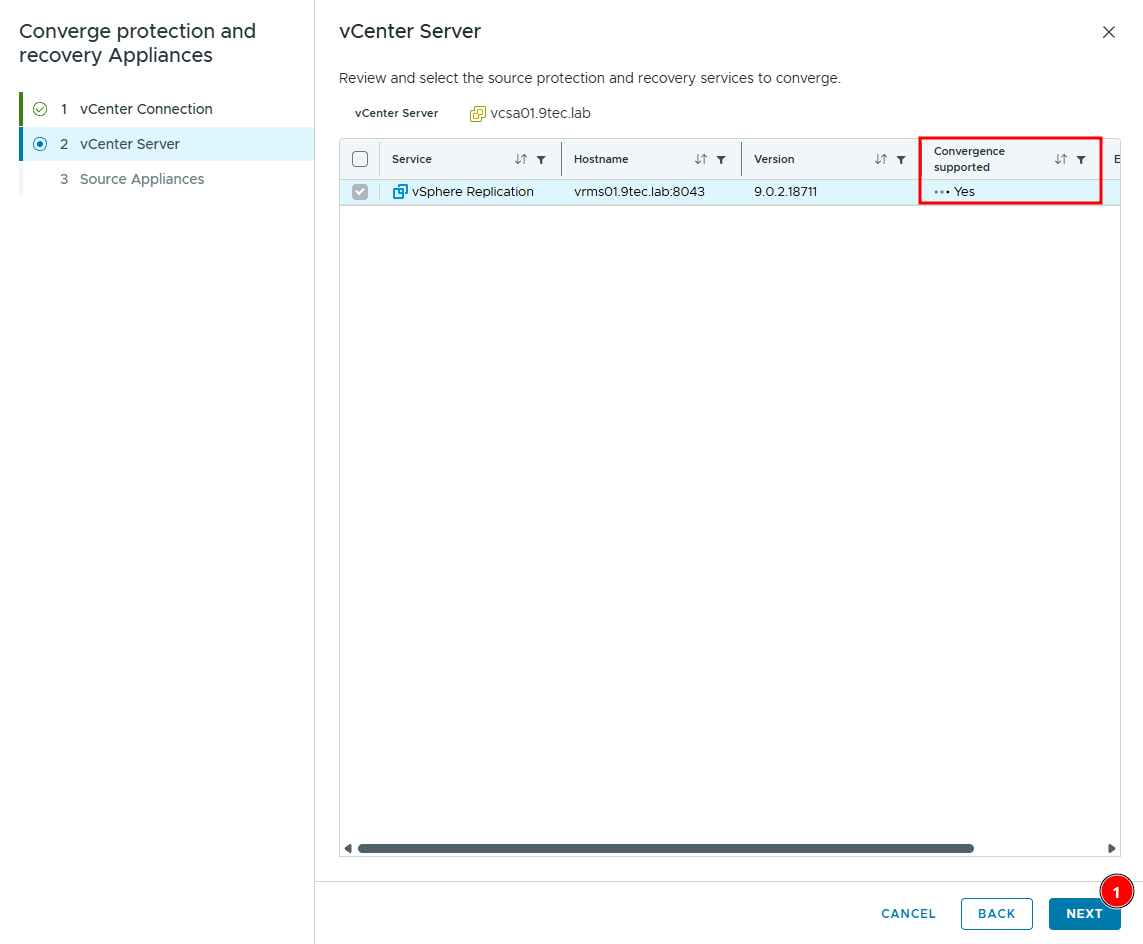
On vCenter Server, the wizard lists the protection services registered in that vCenter that can be converged. In the lab only vSphere Replication at vrms01.9tec.lab:8043, version 9.0.2.18711 (that’s 9.0.2.3), shows up, already selected. What matters is the Convergence supported column reading Yes. If it shows No, the source version isn’t supported and you need to upgrade VR to 9.0.2.3 first. Click Next.
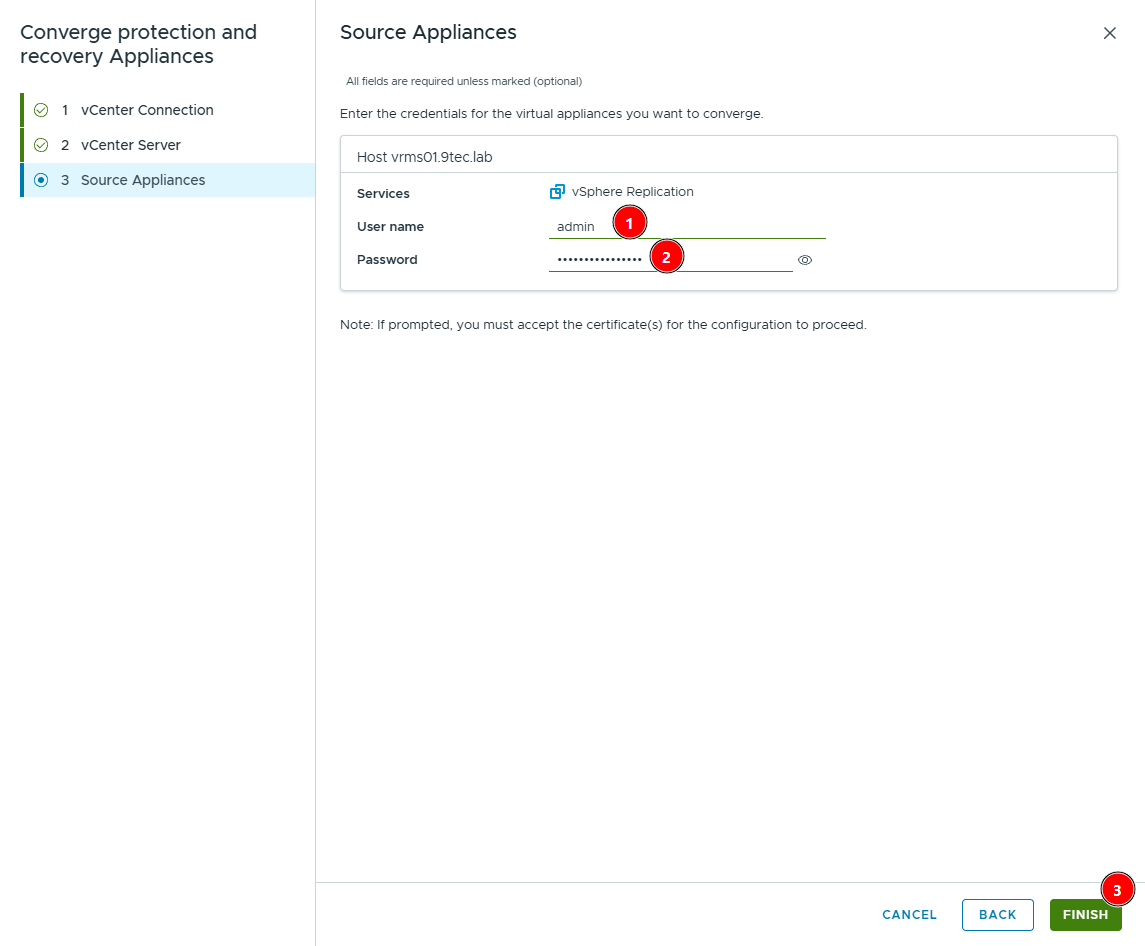
On Source Appliances, enter the legacy VRMS credentials (in the lab, the admin user on vrms01.9tec.lab). This is where the SSH check at the start of this step pays off: the wizard uses that access to export the old appliance’s configuration, and with SSH disabled on vrms01 the convergence fails. Click Finish.
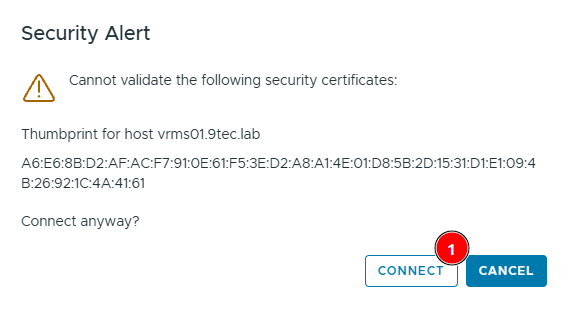
Before it finishes, one more Security Alert shows up, this time with the vrms01.9tec.lab certificate thumbprint. Check the host and click Connect for the convergence to start.
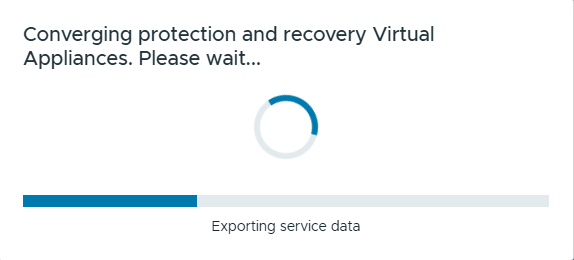
Convergence takes a few minutes, more or less depending on how many replications exist. While it runs, the wizard shows the progress, starting with exporting the service data from the legacy appliance.
When it’s done, the message SUCCESS — Appliances converged shows up in the bottom-right corner of the screen.
4. Configure Appliance#
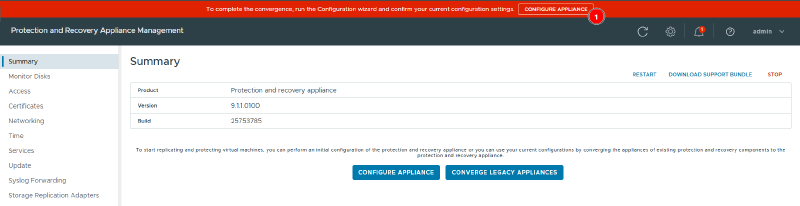
After convergence, the new appliance’s management interface shows a red banner at the top: “To complete the convergence, run the Configuration wizard and confirm your current configuration settings.” Click Configure Appliance on the banner itself. That wizard is what integrates the new appliance with vCenter.
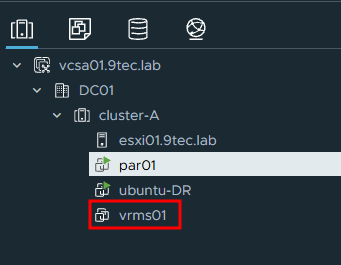
Worth knowing: even before this Configure, the convergence has already powered off the legacy VRMS. In the vCenter inventory, vrms01 shows up as a powered-off VM next to the running par01. Don’t power the old appliance back on: from here on, the new appliance is the one handling replication.
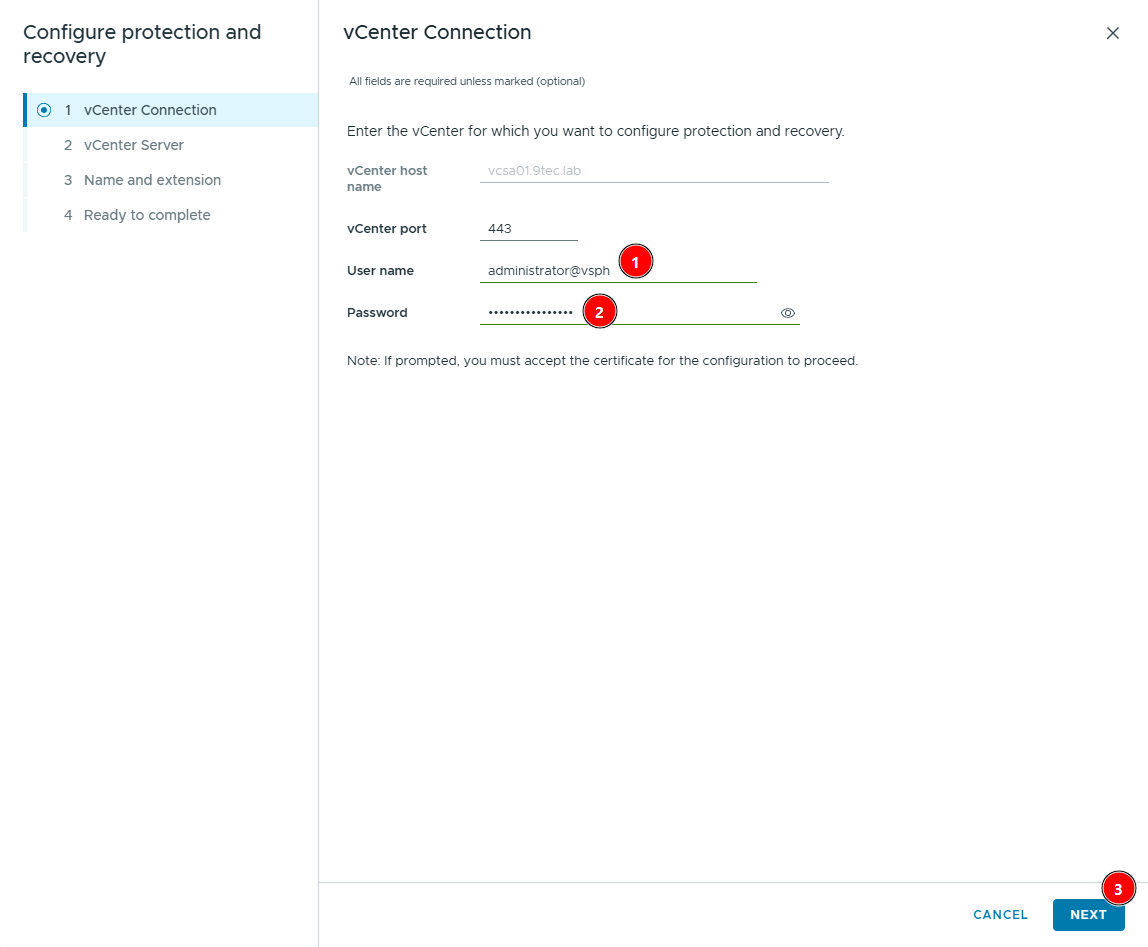
The Configure protection and recovery wizard has four steps: vCenter Connection, vCenter Server, Name and extension and Ready to complete.
On vCenter Connection, the vCenter host name is already filled in and locked with the one used during convergence (in the lab, vcsa01.9tec.lab). Enter only the SSO administrator user and password and click Next.
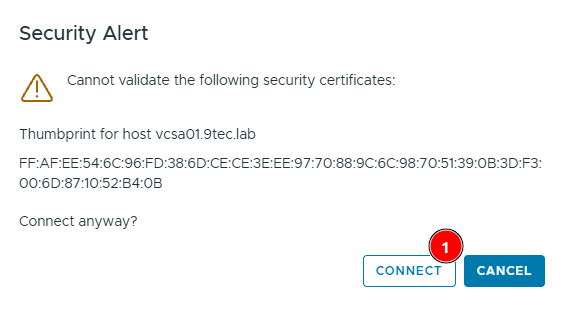
The Security Alert with the vcsa01.9tec.lab thumbprint shows up again. Click Connect.
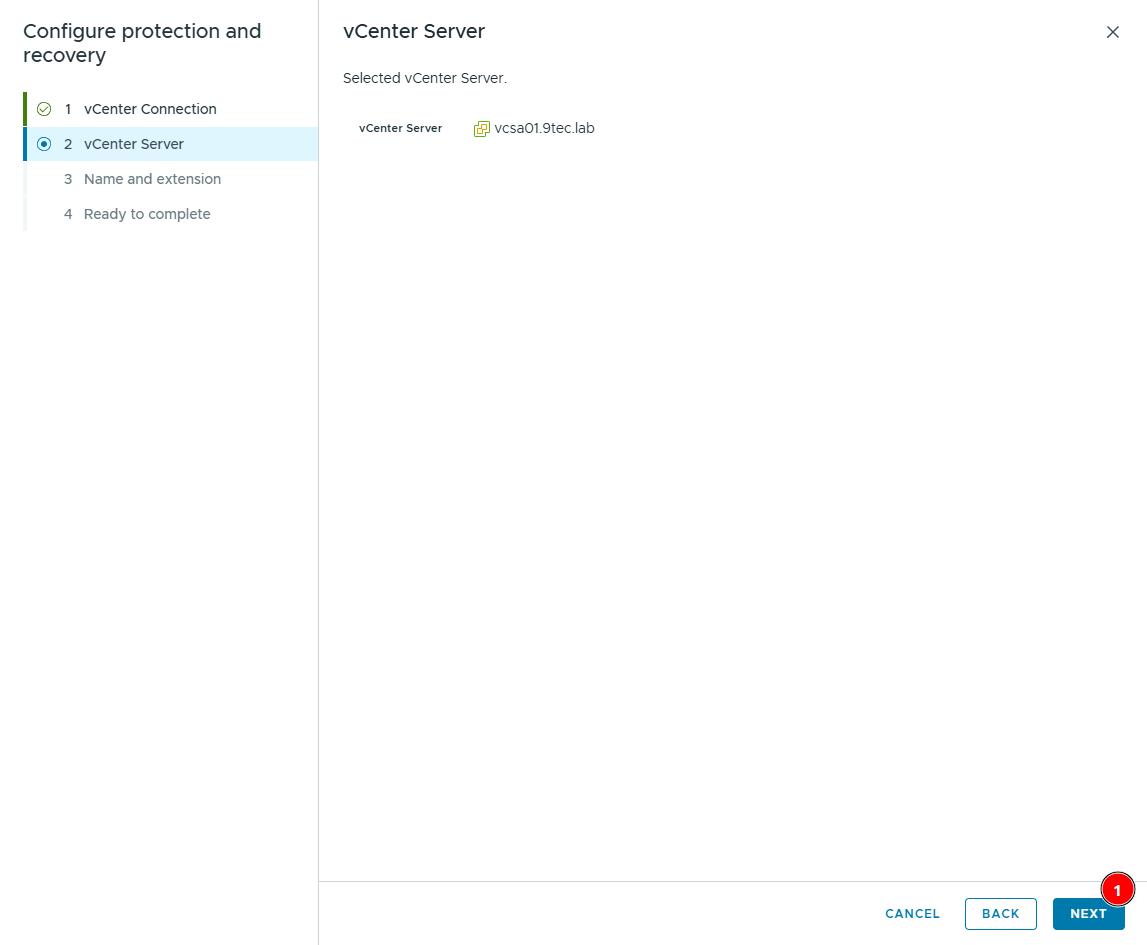
On vCenter Server, the wizard just confirms the selected vCenter (vcsa01.9tec.lab). Click Next.
When you move on, the same Security Alert for vcsa01.9tec.lab shows up once more, with the same thumbprint. Click Connect again.
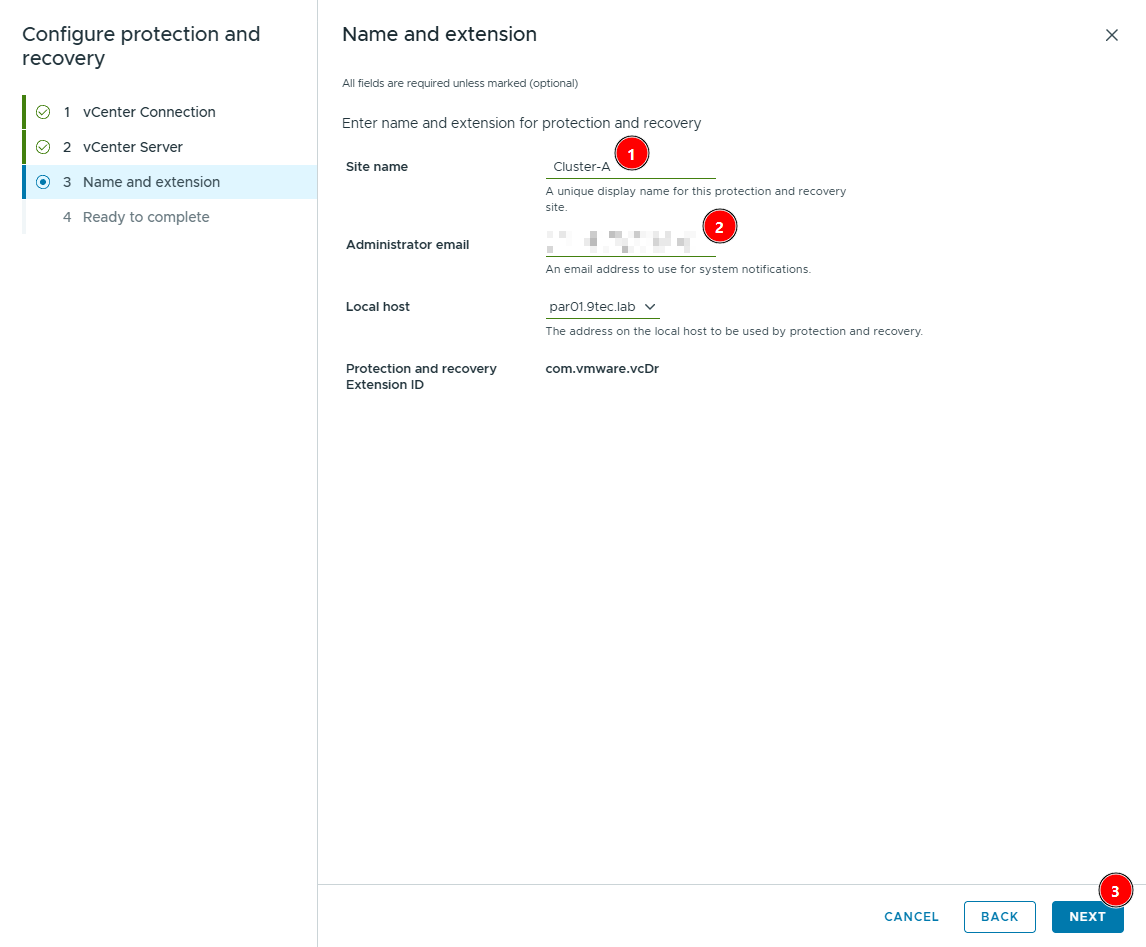
On Name and extension, fill in:
- Site name: a unique name for the protection site, shown in Protection and Recovery and in the pairing (in the lab,
Cluster-A). - Administrator email: the address that receives system notifications.
- Local host: the address the appliance will use. Pick the new appliance’s FQDN (
par01.9tec.lab). - Protection and recovery Extension ID: fixed as
com.vmware.vcDr.
Click Next.
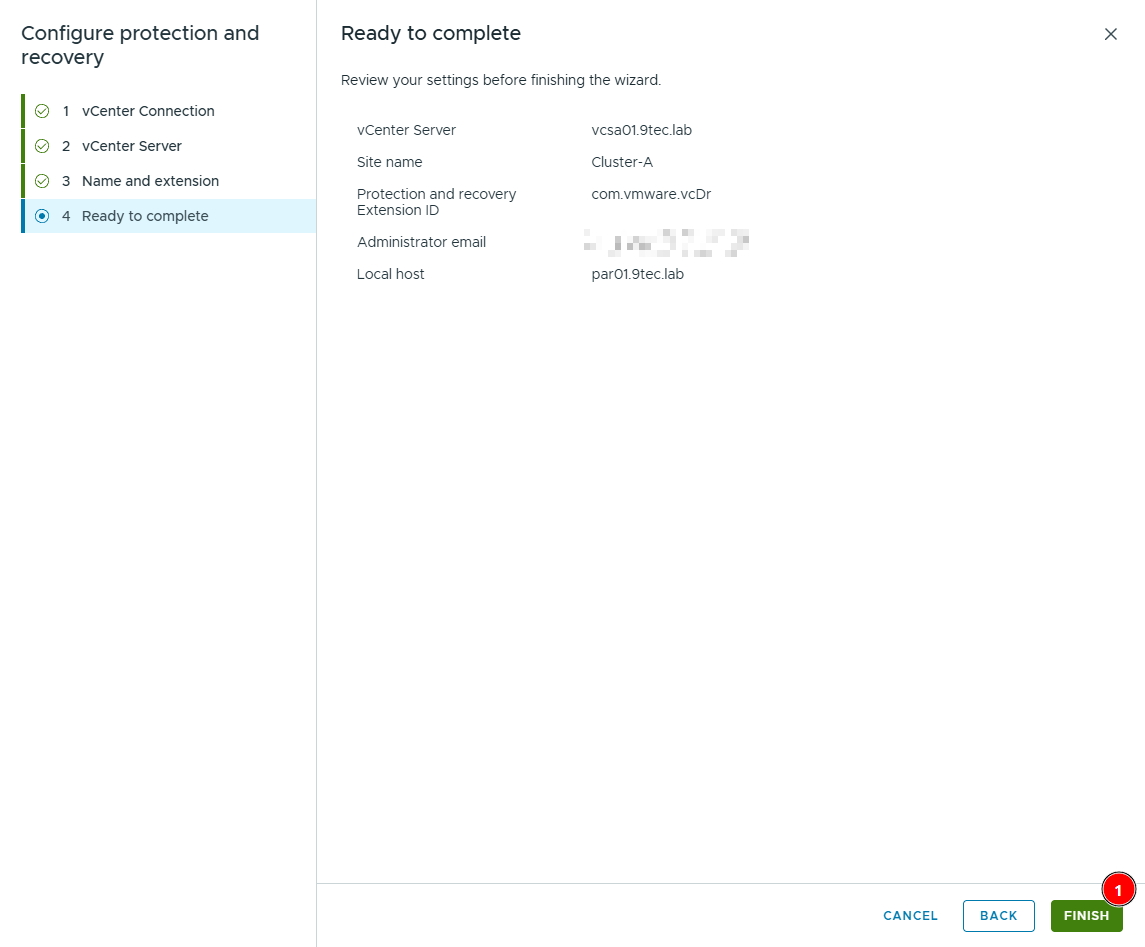
On Ready to complete, review the summary (vCenter, site name, extension ID, e-mail and local host) and click Finish. With that, the new appliance registers with vCenter and convergence is complete on this site.
While it configures, the appliance shows the progress, starting by stopping its services.
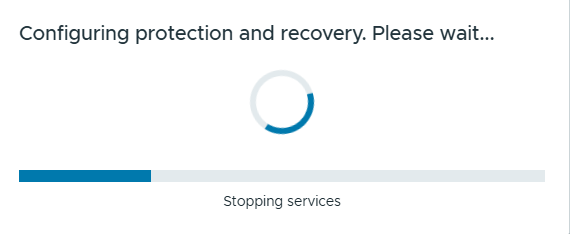
When it’s done, the message SUCCESS — Appliance configured shows up.

5. Repeating it on Site B#
Before repeating the process on Site B, it’s worth checking on the replication. At this point the environment is mixed: Site A (vcsa01) already runs a configured Protection and Recovery, and Site B (vcsa02) is still on the legacy VRMS. Even so, replication keeps working.
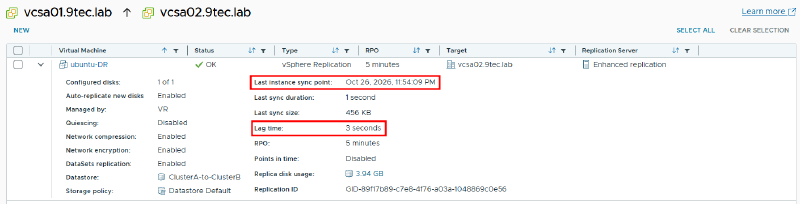
In the Site A vCenter, the plugin now shows up as Protection and Recovery, with the vcsa01.9tec.lab ↔ vcsa02.9tec.lab pair and the ubuntu-DR replication under Outgoing.

In the details, the replication is still OK, on Enhanced replication and syncing within the RPO (in the lab, 3 seconds of lag). Converging one site doesn’t interrupt replication, so you can do one site at a time, without rushing.
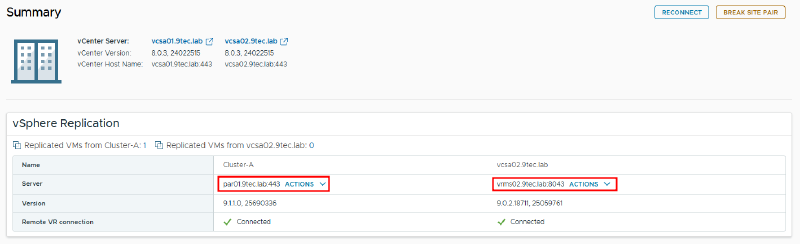
The site pair Summary shows this mixed state clearly. On the Site A side, the server is already par01.9tec.lab:443, with the Cluster-A site name set in Configure Appliance. On the Site B side, it’s still vrms02.9tec.lab:8043, on 9.0.2. And both show Remote VR connection Connected: the new appliance talks to the legacy VRMS on the other site just fine.
Now repeat the process on Site B: deploy par02, check the certificate, enable SSH on vrms02, converge and run Configure Appliance. The site pair between the two vCenters doesn’t need to be recreated, because convergence keeps it. In the lab, though, it needed a reconnect at the end, as the next step shows.
I started with Site A, the protected site, and only then moved to Site B, the recovery site. That’s the order the documentation recommends.
6. Reconnecting the site pair#
With Site B converged and configured, opening Protection and Recovery from vcsa01 showed a red banner: “VR Management Server at par02.9tec.lab is unreachable.” The pair showed Outgoing 0, as if the replication had disappeared.

On the vcsa02 side, on the other hand, everything looked fine: the replication showed under Incoming 1, and the Summary listed par02 and par01 with Remote VR connection Connected.

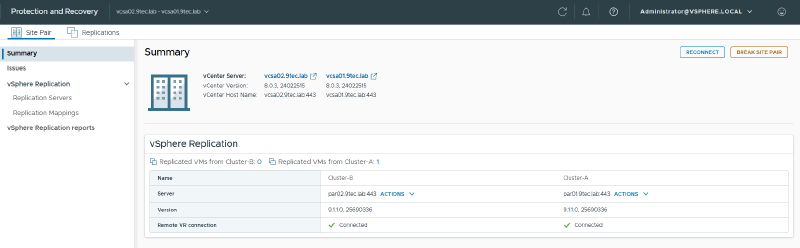
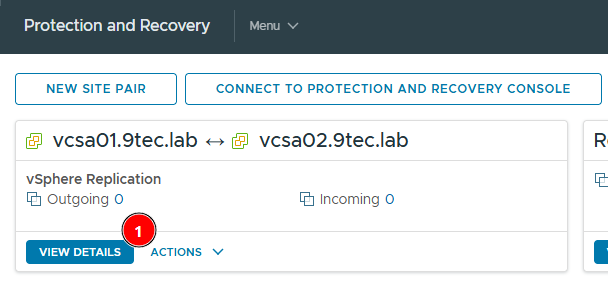
In other words, Site A still held the old path to Site B, from the vrms02 days. The fix is to reconnect the pair from Site A. On vcsa01, click View details on the site pair.
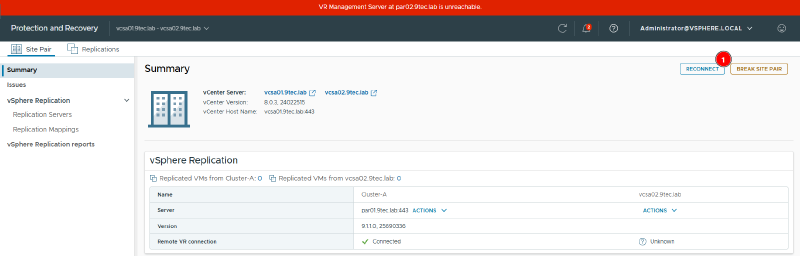
On Summary, the vcsa02 side shows no server and Remote VR connection Unknown. Click Reconnect.
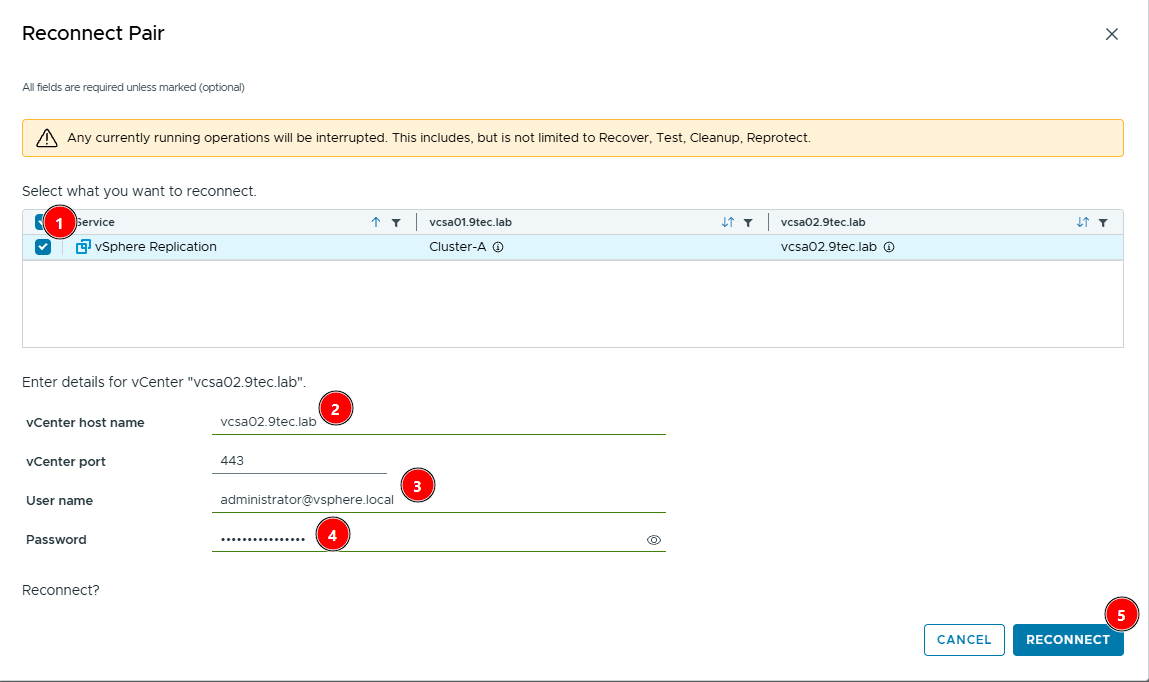
On Reconnect Pair, select the vSphere Replication service and enter the other site’s vCenter (vcsa02.9tec.lab, port 443) with SSO administrator credentials. The warning at the top says running operations (Recover, Test, Cleanup, Reprotect) will be interrupted, so do this outside any DR test. Click Reconnect.
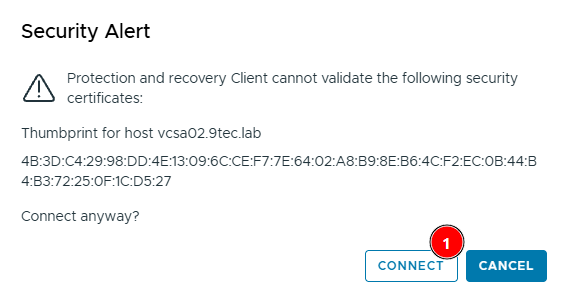
Accept the vcsa02.9tec.lab certificate on the Security Alert by clicking Connect.
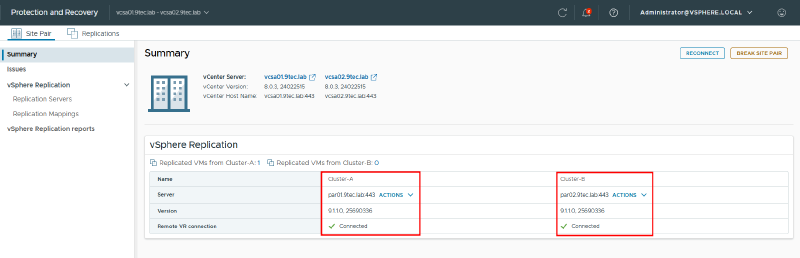
Done: the Summary now shows Cluster-A with par01 and Cluster-B with par02, both on 9.1.1.0 and with Remote VR connection Connected.
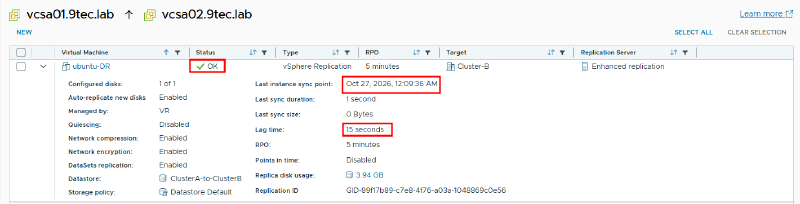
And the ubuntu-DR replication stays OK on Enhanced replication, with the target now shown as Cluster-B, Site B’s site name.
Summary#
Moving from vSphere Replication 9.0.2.3 to Protection and Recovery 9.1 doesn’t require touching vCenter or ESXi. The real work comes first: get every replication onto Enhanced Replication, with network encryption, and make sure DNS, SSH and snapshots are in place. Convergence itself is a wizard that takes a few minutes per site. Do one site at a time, starting with the protected one, and at the end check the site pair on both vCenters, because a reconnect may be needed.
Hit a different error during your convergence? Tell me in the comments and I’ll add it to the FAQ.
What to take to production#
- The main work is moving to Enhanced Replication. Convergence is a wizard that takes a few minutes. Migrate in batches, while still on 9.0.2.3, keeping an eye on the RPO of each batch.
- Mandatory encryption costs CPU, on both the source and target hosts, on top of compression. Measure the impact before migrating the big VMs.
- Be ready for a mass reconfigure after each convergence. If “Unable to move replication group” shows up (see the FAQ), the VMs sit in RPO violation until the reconfigure runs. With hundreds of VMs, automate it through the REST API or PowerCLI.
- Customizations on the legacy appliance don’t migrate (systemd overrides, manual tweaks, like the
hms.serviceone I showed in VRMS Connection refused). Document them first. - Custom permissions that reference VR roles are lost and must be recreated.
- The VCF Operations (vROps) management pack moves the metrics to a new resource group. Adjust dashboards and alerts.
- Don’t delete the legacy appliances until validation is done. Convergence already powers them off; leave them that way, don’t power them back on.
Post-upgrade checklist#
- Check the site pair on both vCenters and reconnect wherever it shows as unreachable, as in step 6 (also avoids
Failed to retrieve capabilities for site) - NTP: time sync may stop after converging to 9.1.1.0; reconfigure it
- Reconfigure the replications in error
- Recreate custom permissions
- Test recovery (coming from 9.0.4/9.0.5 there’s the known issue “group has independent instances”: run the cleanup,
systemctl restart hmson the recovery site and try again) - Validate monitoring in VCF Operations
- Confirm the legacy appliances are powered off (and keep them, not deleted, until validated)
FAQ#
What if a replication is left in legacy mode?
Convergence stops. To see it in practice, I deliberately created a test replication in legacy mode and, with par02 up, tried to converge: the wizard blocked it with Legacy replications present, the error in the screenshot back in the prerequisites. In a real environment, that’s what happens when some VM gets left behind in the move to Enhanced.
To find replications still on legacy, open Site Recovery, go to Replications and look at both Outgoing and Incoming. On the target site view (Incoming), a legacy replication shows the appliance’s own VR server in the Replication Server column (in the lab, 127.0.0.1). The clearest giveaway, though, is Network encryption reading Disabled: encryption is mandatory in enhanced mode, so any replication without it is still on legacy.
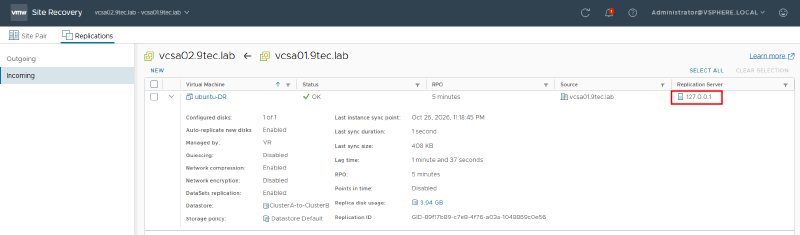
The way out is to convert the leftover replication to Enhanced, or simply remove it if it no longer makes sense. The conversion is a Reconfigure of the replication itself, with nothing to recreate:
Select the replication in the list and click Reconfigure.
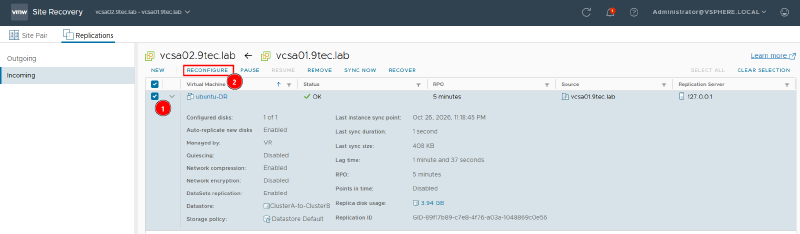
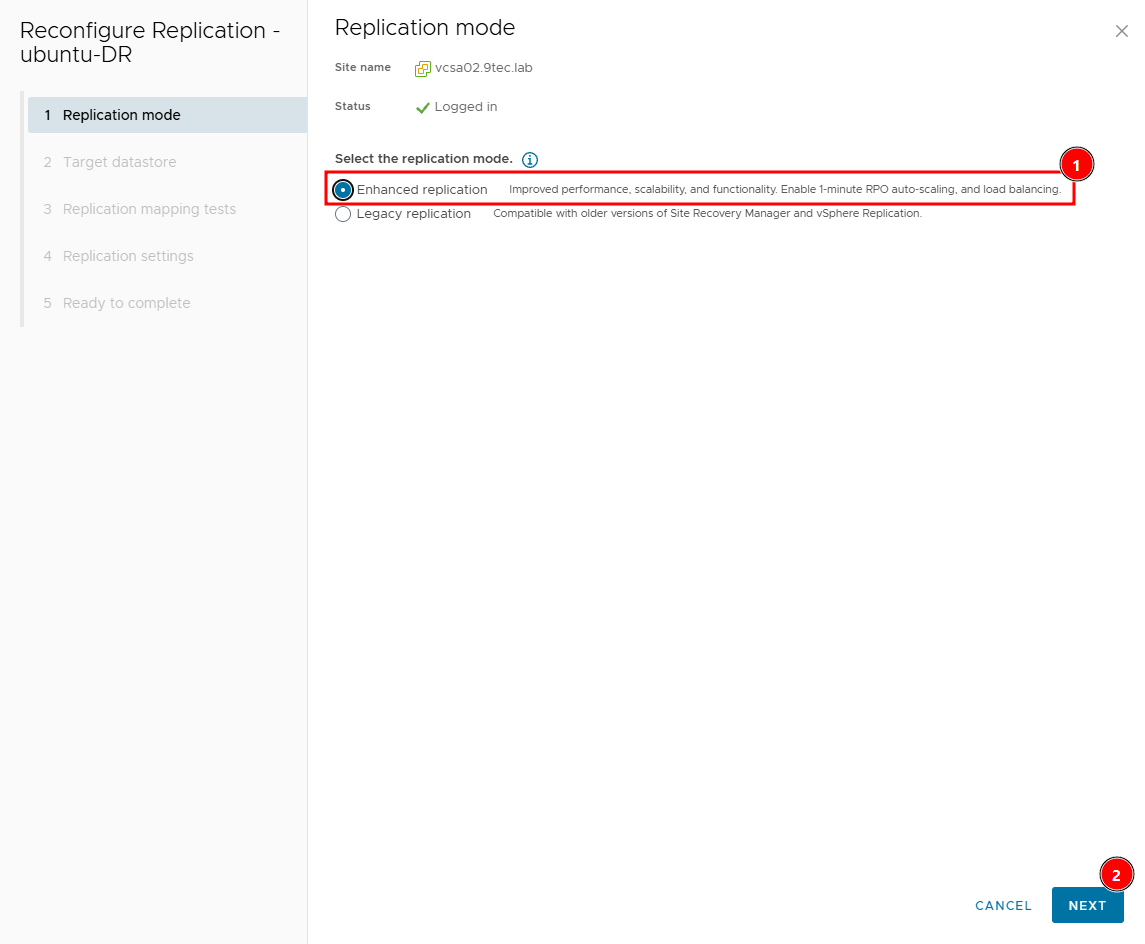
On Replication mode, switch to Enhanced replication and click Next. The wizard now has steps for the target datastore, mapping tests and replication settings.
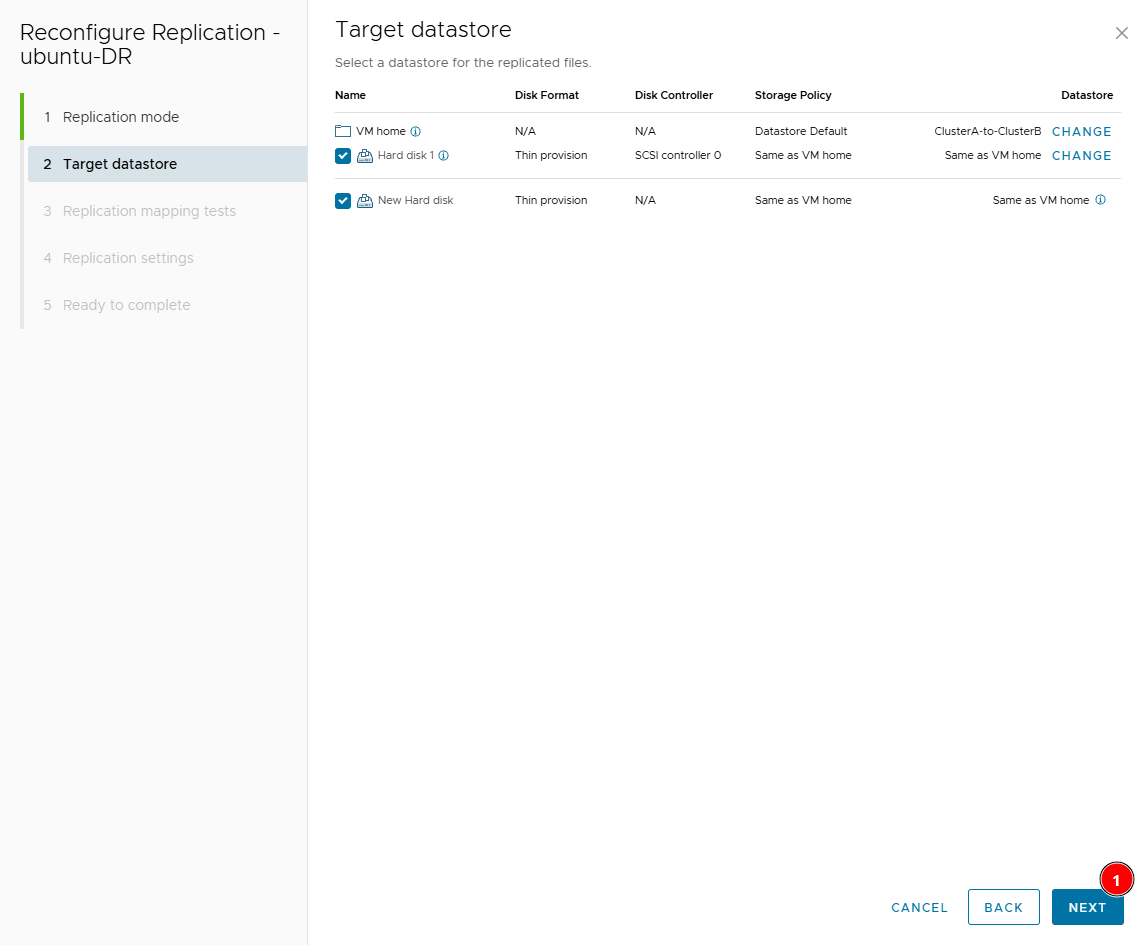
On Target datastore, the wizard already shows the datastore of the current replication (in the lab, ClusterA-to-ClusterB). Keep the same target and click Next.
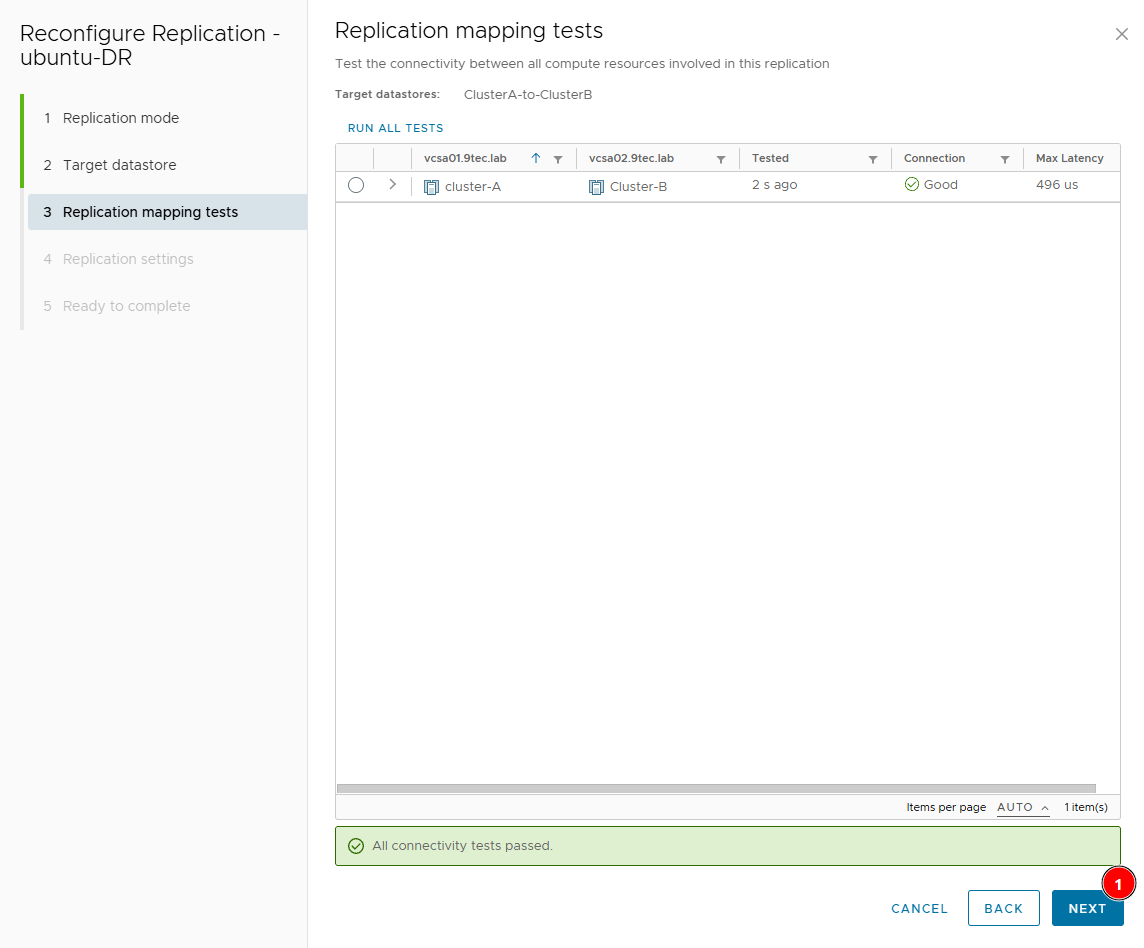
On Replication mapping tests, the wizard tests connectivity between the source and target clusters. This is where the path change shows up: in enhanced mode, data goes straight from ESXi to ESXi, without going through the target VR appliance. If the test fails, review routing and firewall between the replication vmkernels on both sites. With All connectivity tests passed (in the lab, cluster-A ↔ Cluster-B with a Good connection), click Next.
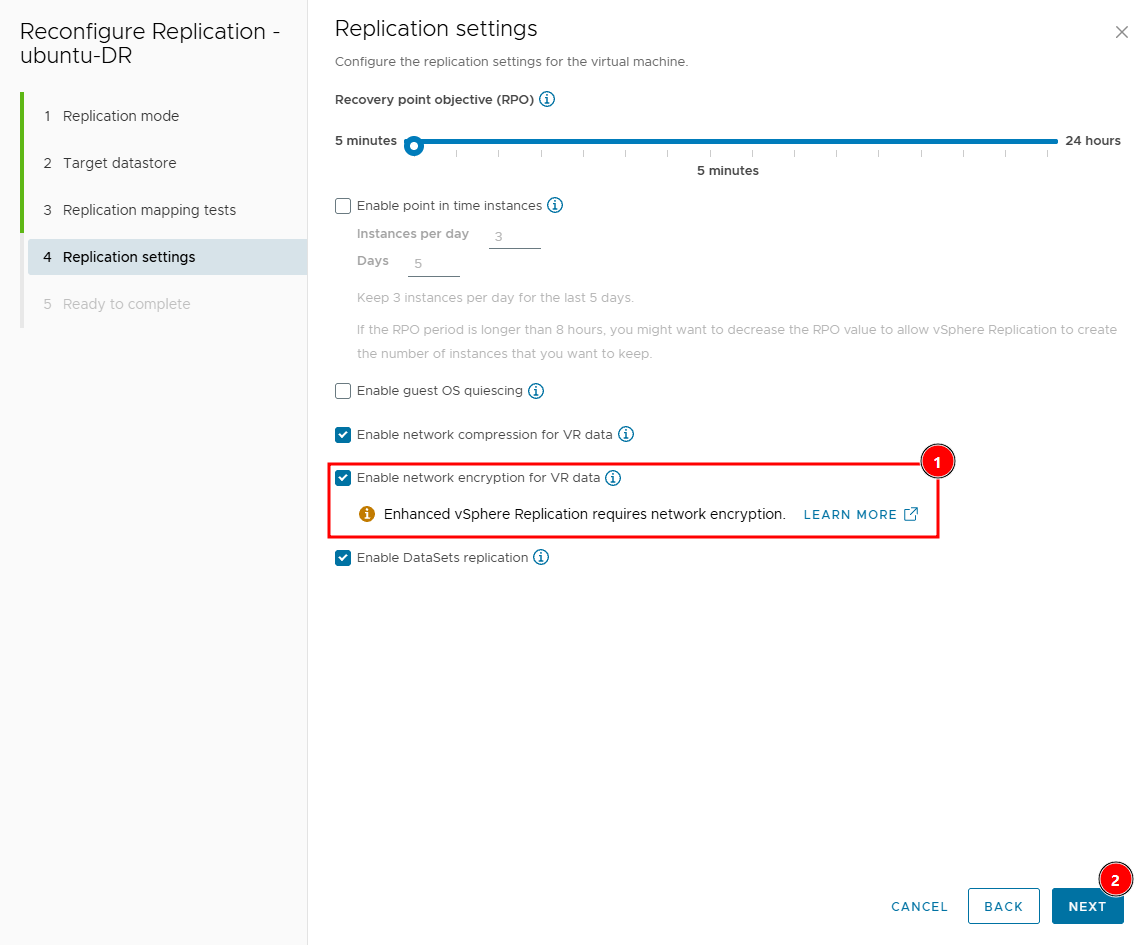
On Replication settings, set the RPO and the other options to match the original replication (in the lab, 5-minute RPO, compression and DataSets replication enabled). The mandatory item is Enable network encryption for VR data: the wizard itself warns that Enhanced vSphere Replication requires network encryption and won’t proceed without it. Keep in mind that encryption and compression cost CPU on the source and target hosts. Click Next.
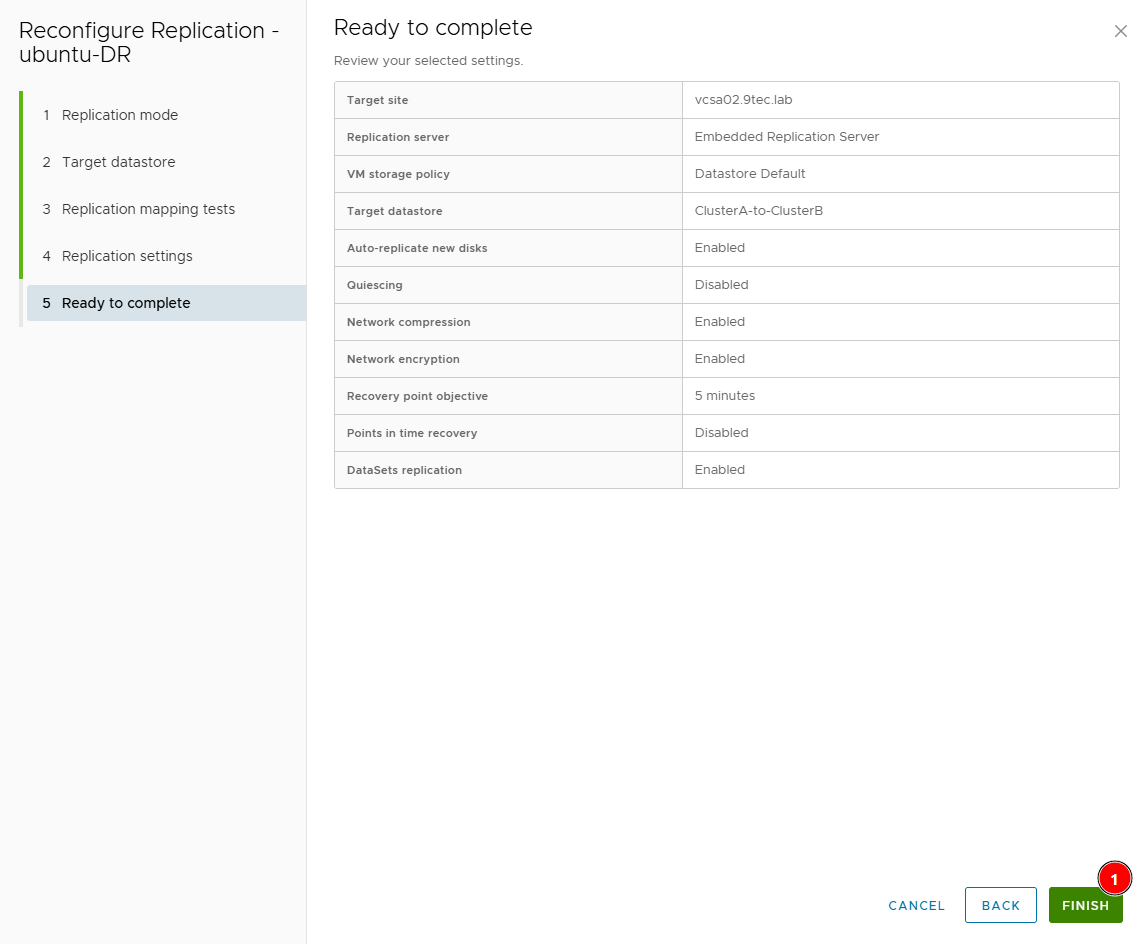
On Ready to complete, review the summary and mainly confirm Network encryption: Enabled and the target datastore. Click Finish.
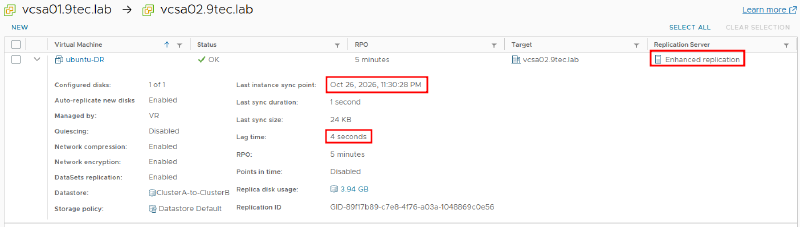
Once it syncs, the replication looks different on both sides. On the source site (Outgoing), the Replication Server column now shows Enhanced replication.
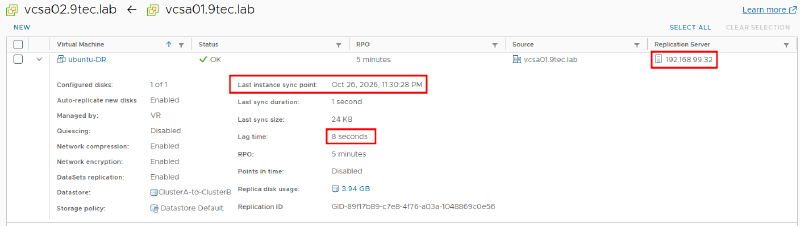
On the target site (Incoming), it no longer points to the appliance’s VR server and shows the management IP of the ESXi host receiving the replication instead (in the lab, 192.168.99.32, which is esxi02). That’s the proof that data now flows from ESXi to ESXi.
Before trying to converge again, check both directions (incoming and outgoing): no replication may still have Network encryption disabled or point to the appliance’s VR server.
What if replication goes into RPO violation after convergence?
In this lab, replication stayed OK. In an earlier run of the same process, though, the replication went into error after converging:
Error (RPO Violation) — Unable to move replication group to a new vSphere Replication Server.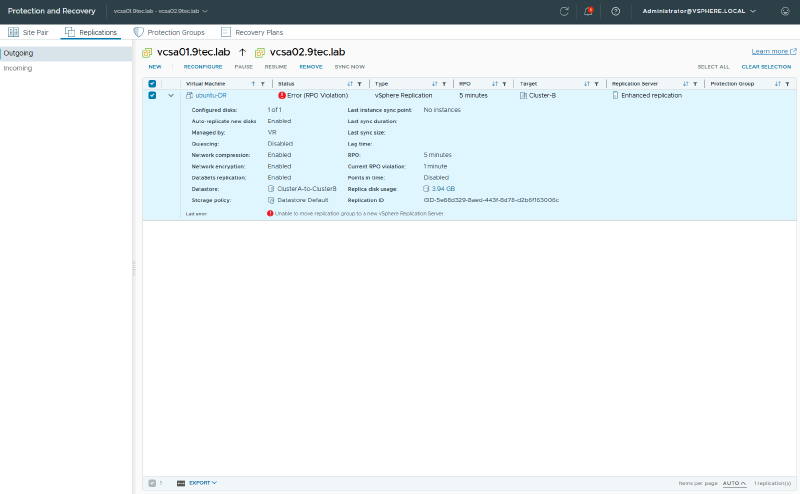
The cause is the new appliance IP: the replications still point to the old server. It’s a known issue since 9.0.3 and listed as fixed in 9.1.1.0, but I reproduced it on 9.1.1.0100.
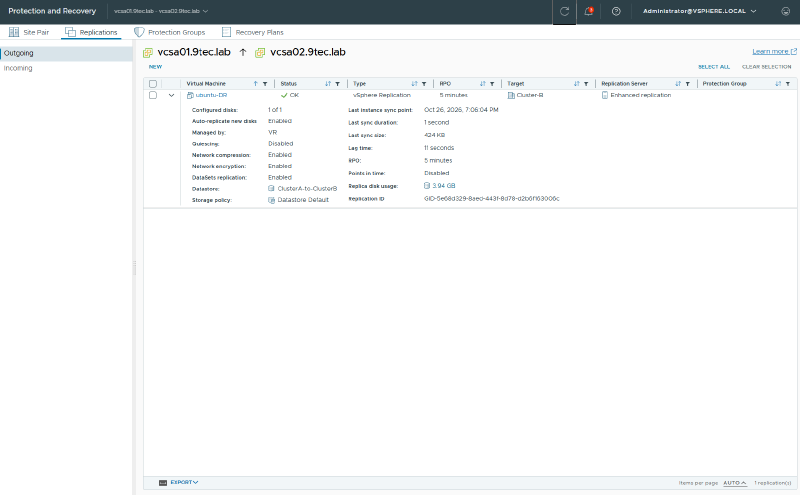
The fix is a Reconfigure without changing anything: open the wizard, click through to the end and finish. After that the status goes back to OK. With many VMs, it’s worth automating that reconfigure through the REST API or PowerCLI.
In the lab, right after the reconfigure the replication started syncing again: status OK, 11 seconds of lag and the last sync of 424 KB taking 1 second.
What about licensing, if I only use vSphere Replication?
VR-only users are often surprised by this: the combined appliance always includes the SRM components and registers the Site Recovery plugin in vCenter. Along with it comes a Live Site Recovery evaluation license.
That evaluation applies only to the SRM features: protection groups, recovery plans, planned migration and DR orchestration. When it expires, standalone replication keeps working, covered by the vSphere or VCF license. If you don’t use SRM, you can remove the Live Site Recovery solution registration from vCenter with no impact on VR (KB 445654).
References#
- Protection and Recovery 9.1.1.0 Release Notes
- Protection and Recovery 9.1 Release Notes
- KB 408127 – Steps to Converge to VMware Live Recovery Appliance 9.0.4 (or newer) and Common Issues
- KB 414400 – How to upgrade (converge) from VLSR to VMware Live Recovery Appliance
- KB 445654 – Licensing Behavior for Standalone vSphere Replication after Converged Appliance
- KB 441696 – Download VMware Protection and Recovery / Live Recovery
- KB 380968 – Build numbers and versions of vSphere Replication Appliance
- KB 414278 – vSphere Replication 9.0.3 not downloadable
- VMware Blog – Protecting VCF 9: Upgrade to Enhanced vSphere Replication