Failed tasks in SDDC#
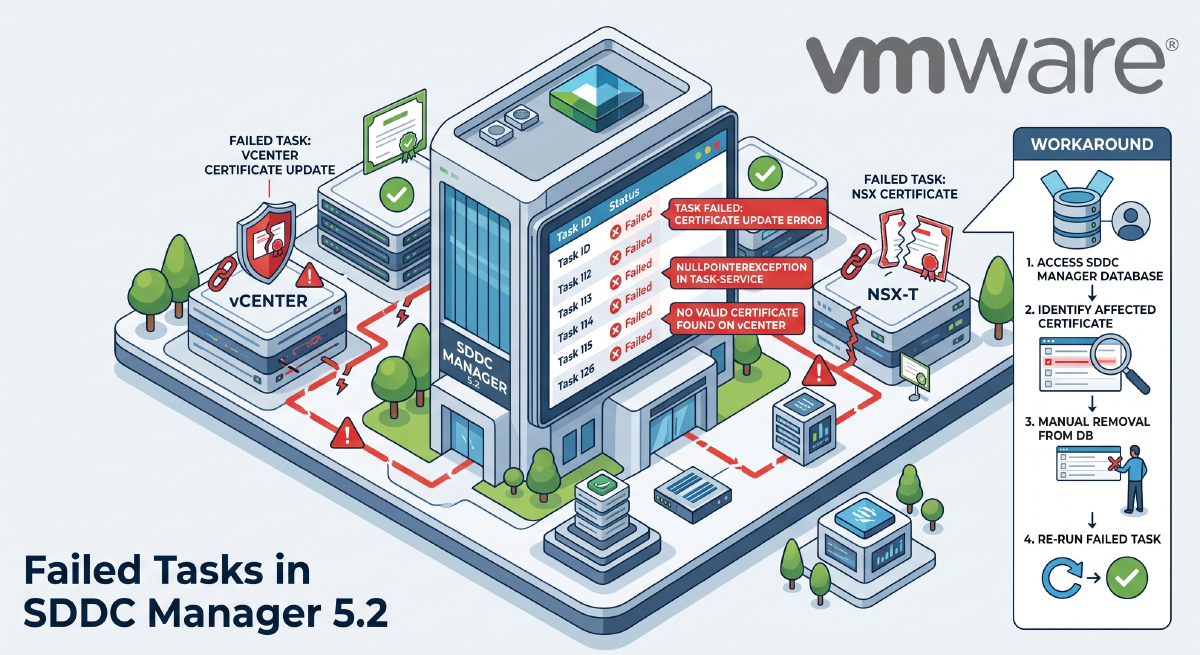
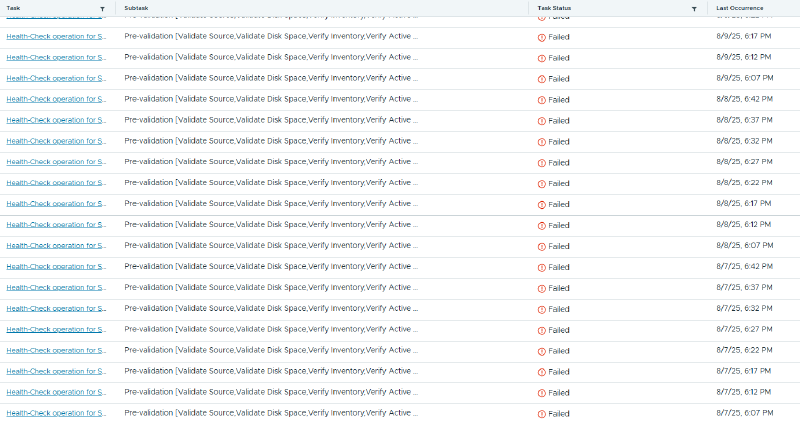
Recenlty I faced a weird case with VMware, out of nowhere failed tasks started to show on my SDDC, intially I thought it was something related to password expired, but no, not this time.
The logs don’t lie#
People lie, but the logs don’t. After a couple days working with VMware support and we didn’t seem to find any clue of what was happening, by accident I saw something on the SOS healthcheck that caught my attention, it was complaining that the SDDC had problems to connect to my host through API (port 443).
How to run a health check on SDDC
/opt/vmware/sddc-support/sos --health-check --domain-name ALL --skip-cert-check| 21 | ESXi : testhost1.9tec.local | Ping status | GREEN |
| | | API Connectivity status | RED |
| 21 | ESXI : testhost1.9tec.local | svc-vcf-testhost1 | Jul 20, 2025 | Never | Never | GREEN |
| | | root | - | - | - | Failed to get details |
| 21 | ESXi : testhost1.9tec.local | NTP Status | YELLOW |
| | | ESX Time | YELLOW |Dang, it reminded me of a situation I found not long ago, where my vSphere replication was causing the reverse proxy on ESXi to exhaust the sessions (the limit is 128). Reference: ESXi hosts go unresponsive on the vCenter Server with maximum connection exceeded for the envoy proxy.
Well well, let’s take a look on the envoy.log on this particular host and see what’s going on
less /var/log/envoy.log
## or
less /var/log/envoy.log
Search by the word “exceed” and you’ll see if there are any evidences of exceeding max connections
2025-08-13T22:14:06.853Z In(166) envoy[2100238]: "2025-08-13T22:13:57.261Z warning envoy[2100869] [Originator@6876 sub=filter] [Tags: "ConnectionId":"696461"] remote https connections exceed max allowed: 128"
2025-08-13T22:14:06.853Z In(166) envoy[2100238]: "2025-08-13T22:13:57.261Z warning envoy[2100869] [Originator@6876 sub=filter] [Tags: "ConnectionId":"696461"] closing connection TCP<my_vcenter_IP:59956, my_esxi_IP:443>"
2025-08-13T22:14:06.853Z In(166) envoy[2100238]: "2025-08-13T22:13:57.261Z info envoy[2100869] [Originator@6876 sub=connection] [Tags: "ConnectionId":"696461"] remote address:my_vcenter_IP:59956,TLS_error:|268435588:SSL routines:OPENSSL_internal:CLIENTHELLO_TLSEXT|268435646:SSL routines:OPENSSL_internal:PARSE_TLSEXT"
The workaround#
As the KB mentioned above says, there’s no fix for that, but a workaround that consists in disabling the healthcheck on the vSphere replication (that’s what is using the sessions on the ESXi hosts due to enhanced replication fancy checks)
1 - Open a SSH session to the VRMS server on both the sites.
2 - Open file /opt/vmware/hms/conf/hms-configuration.xml with a text editor`
vi /opt/vmware/hms/conf/hms-configuration.xml3 - Set schedule-health-checks to false
4 - Restart HMS service on both sites
systemctl restart hms5 - While configuring enhanced replication, skip the health check. Clicking the “Next” button will allow you to proceed with the replication configuration without performing the health check.