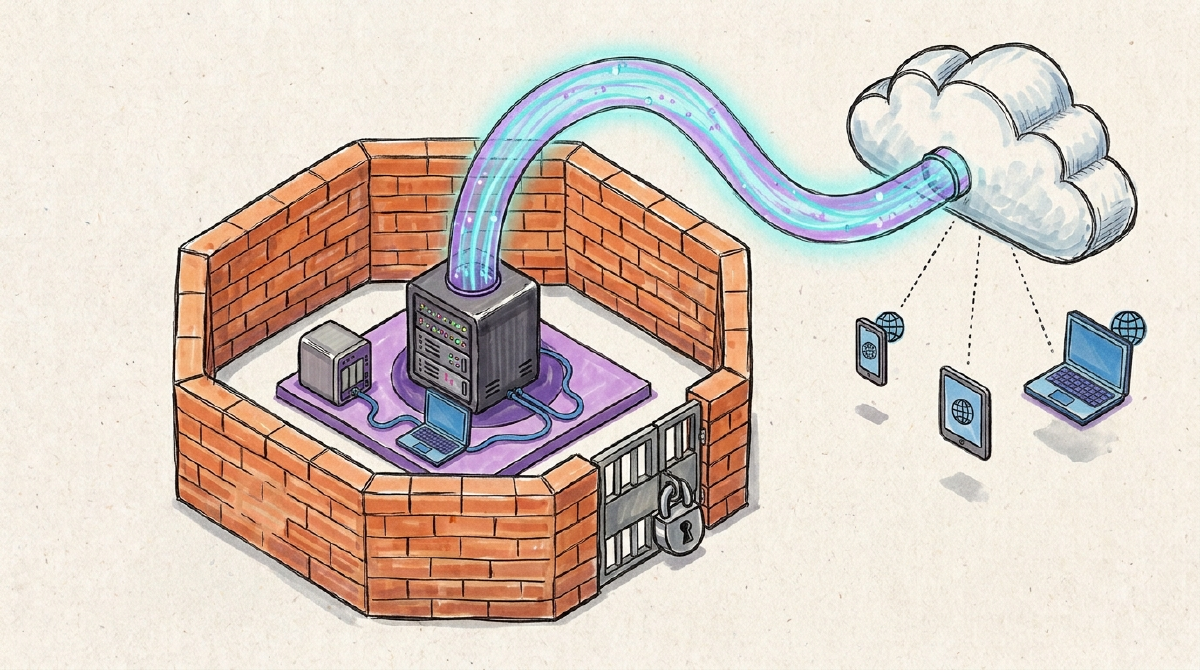
This blog runs on a VM inside my homelab. Nobody on the internet can open a connection to my house, and the VM, in turn, can’t see anything on my network except the router. This series shows how to build that from scratch, for any HTTP service: a blog, a Nextcloud, a dashboard, an API.
The best-known piece is Cloudflare Tunnel, which publishes the service without opening ports on the router and works even behind CGNAT. But it only takes care of the way in. If the service gets compromised, the attacker is still on the same network as your NAS, your cameras and your laptop. That’s why the series starts with isolation, before exposing anything.
The series has three parts:
- Isolation (this post): the exposed VM can’t reach the rest of your home.
- Tunnel: publish the service with Cloudflare Tunnel.
- Pipeline: automatic deploys with GitHub Actions and a runner inside the isolated VM.
You don’t need special gear to follow along. A Linux VM on whatever hypervisor you already run is enough, and if your router supports VLANs, even better.
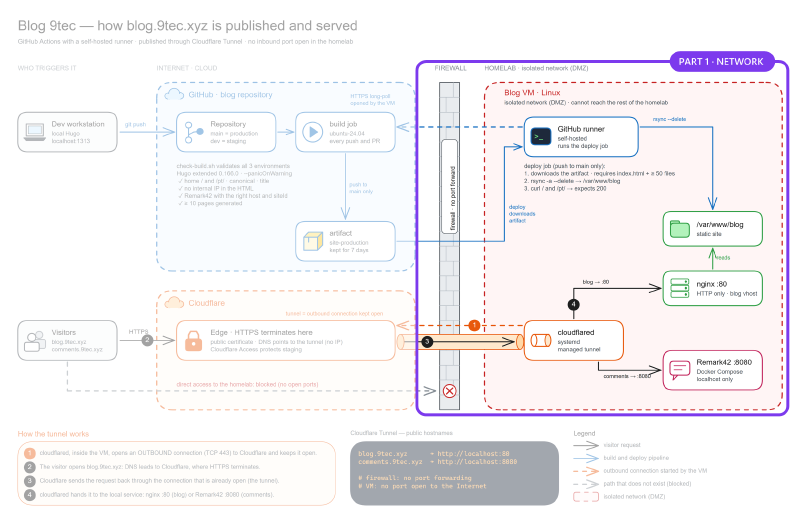
The diagram below shows the whole system, from git push to the visitor. The highlighted part is what this post covers.
What isolating an exposed VM means#
Before picking a tool, it helps to define the behavior you want. The VM that goes on the internet should:
- not open connections to any other device on the network (NAS, router, other VMs);
- not accept connections from anyone except the machine you manage it from;
- be able to reach the internet, because the Part 2 tunnel is a connection the VM itself opens outbound;
- use the router’s DNS.
flowchart LR
  internet((Internet))
  subgraph home[Your network]
    direction LR
    nas[NAS, laptop,
router, other VMs]
    admin[Your admin
machine]
    vm[Exposed VM]
  end
  vm -- "outbound: allowed" --> internet
  vm -. "blocked by the firewall" .-> nas
  admin -- "SSH: allowed" --> vm
  internet -. "no open ports" .-> vm
Router firewall or ufw on the VM?#
There are two places to put this barrier, and the difference between them shows up exactly in the worst case.
| Router firewall (with a VLAN) | ufw on the VM | |
|---|---|---|
| Where the rule lives | on the router, outside the VM | inside the VM |
| You need | a router with VLANs and a firewall (UniFi, OPNsense, pfSense, OpenWrt) and a managed switch | nothing but the VM |
| If the VM is compromised | the rule still holds | whoever gets root can turn ufw off |
| Docker containers | isolated too | slip past the outbound rules (see below) |
If your router supports it, go with the first option. If it doesn’t, ufw is still far better than leaving the VM loose on your network.
Option 1: VLAN with a router firewall (what I use)#
Here the VM leaves your home network and gets a network of its own. The router decides what goes in and out.
In my case, the router is a UniFi gateway (Network 10.6) with a zone-based firewall, but the same design works on OPNsense, pfSense or OpenWrt. Only the screen you click on changes.
I created a network on VLAN 101 and put it in the DMZ zone, which UniFi ships out of the box. I didn’t have to write a single blocking rule, because the zone’s default policies already do all the isolation. This is the matrix my gateway applies today, checked straight from its API:
| From → To | Result |
|---|---|
| DMZ → internal network, lab, monitoring, VPN, guests | blocked |
| DMZ → DMZ (between networks in the zone) | blocked |
| DMZ → gateway | blocked, except DNS, DHCP and ICMP |
| DMZ → internet | allowed |
| internet → DMZ | blocked (only return traffic gets in) |
| internal network → DMZ | allowed (that’s how I manage it) |
On another router, the equivalent is a set of rules on the VLAN interface, in this order: allow DNS to the gateway, block every private network and allow the rest.
On the hypervisor side, the VM has to be on the VLAN. On Proxmox, that takes a VLAN-aware bridge attached to a switch port that carries VLAN 101 tagged. My /etc/network/interfaces looks like this:
auto vmbr0
iface vmbr0 inet static
	bridge-ports bond0
	bridge-stp off
	bridge-fd 0
	bridge-vlan-aware yes
	bridge-vids 2-4094
On the VM, you just set the tag. Since I build VMs from a cloud-init template, the IP comes along:
qm set 101 --net0 virtio=BC:24:11:AA:BB:CC,bridge=vmbr0,tag=101
qm set 101 --ipconfig0 ip=10.10.101.10/24,gw=10.10.101.1
qm set 101 --nameserver 10.10.101.1
On other hypervisors, look for the VLAN ID field on the VM’s network card.
In my lab, isolation stops there. The VM has no active ufw, and everything comes from the network.
Option 2: ufw on the VM (when the router won’t help)#
If your network is the one your ISP’s router gives you, with no VLANs, the VM has to protect itself. In the examples below, the home network is 192.168.1.0/24, the router is 192.168.1.1, your admin machine is 192.168.1.50 and the exposed VM is 192.168.1.200. Swap in your own addresses.
On the VM (Ubuntu or Debian):
sudo ufw default deny incoming
sudo ufw default allow outgoing

# inbound: SSH only, and only from your machine
sudo ufw allow from 192.168.1.50 to any port 22 proto tcp

# outbound: DNS through the router first, then block private networks
sudo ufw allow out to 192.168.1.1 port 53
sudo ufw deny out to 10.0.0.0/8
sudo ufw deny out to 192.168.0.0/16

sudo ufw enable
sudo ufw status numbered
What each part does:
- Nothing gets in except SSH from your machine. That rule goes in before
enableso you don’t drop your own session. - ufw evaluates rules in order. DNS to the router goes through first, and after that any destination in
10.0.0.0/8or192.168.0.0/16is blocked, including the router’s web UI, the NAS and your other VMs. - Everything else, meaning the internet, is allowed. Replies to established connections pass too, so SSH works normally.
- If the VM gets its IP over DHCP, add
sudo ufw allow out to 192.168.1.1 port 67 proto udpbefore thedenylines.
You may have noticed 172.16.0.0/12 is missing from the list. That’s the range Docker uses for container networks, and blocking it cuts the host off from its own containers. If your home network sits in that range, allow Docker’s networks first (docker network inspect shows which ones) and only then block it.
Docker ignores ufw (and other limits)#
ufw has four limits worth knowing before you rely on it.
- Whoever gets root on the VM can turn ufw off with one command. The barrier holds against configuration mistakes and an unprivileged attacker, but not against one with root.
- The outbound rules don’t apply to Docker containers. Their traffic goes through the
FORWARDchain, which Docker controls ahead of ufw, so a compromised container can reach your network even with ufw on. To filter containers, use theDOCKER-USERchain (Docker’s firewall docs). - Ports published by Docker also bypass ufw on the way in. Publish services on
127.0.0.1only (-p 127.0.0.1:8080:8080), since the Part 2 tunnel only needs to reachlocalhost. - The VM is still on the same network (layer 2) as the rest of your home and sees its broadcast traffic.
How to test the isolation#
Whichever option you pick, test from inside the VM before you trust the setup. The commands below use the option 2 addresses; for option 1, swap the router for the VLAN gateway.
# should work: DNS through the router and outbound internet
getent hosts github.com
curl -sI https://github.com | head -1

# should FAIL (timeout): another device on the network, like the NAS
nc -vz -w 3 192.168.1.10 445

# should FAIL: the router's web UI
curl -m 5 -sI http://192.168.1.1 | head -1
If nc or the last curl get an answer, some rule is allowing that traffic or the rules are in the wrong order. With ufw, sudo ufw status numbered shows the order.
If you run Docker, repeat the last test from inside a container: docker run --rm curlimages/curl -m 5 -sI http://192.168.1.1. With option 2, it will probably get an answer, for the reason explained above.
What this isolation doesn’t solve#
Neither option solves everything. Three things are still open.
- Outbound internet is wide open, so a compromised service can download tools or send data out. You can tighten that. The Part 2 tunnel needs outbound access to Cloudflare on ports 7844 (TCP and UDP) and 443, and the VM needs 80 and 443 for updates plus 123/UDP for NTP. Allowing only that closes things down a lot; the price is remembering that list every time you install something new.
- The hypervisor is shared. Network isolation doesn’t protect you from a flaw in the hypervisor itself, and agents like
qemu-guest-agentopen an administration channel that doesn’t go through the network. Whoever controls the host controls the VM, firewall or not. - Monitoring gets left outside too. If you run Zabbix, Prometheus or something similar, the monitoring server gets blocked as well. Explicitly allow only the agent port.
Next step: the tunnel#
We now have a VM that can’t talk to anything on your network and that nobody on the internet can reach. In Part 2, its service goes live through a Cloudflare Tunnel: the VM opens the connection outbound, and visitors come in through it, with no ports open on the router.
If you isolated your service some other way, with OPNsense, OpenWrt or another tool, tell me in the comments.
References: